Solutions and Flows
This guide covers how to browse Power Platform solutions, manage flows in the Flow Workspace, the Examples gallery, and a Local Folder, work with your environment's flows on the Cloud Flows page, and inspect run history. Editing, running, and debugging a flow happen in the Flow Editor, which every list on this page opens.
Solutions
Solution Browser
The Solution Browser provides a searchable, sortable table of all solutions in the currently selected Dataverse environment. Navigate to it from the sidebar under Solutions.
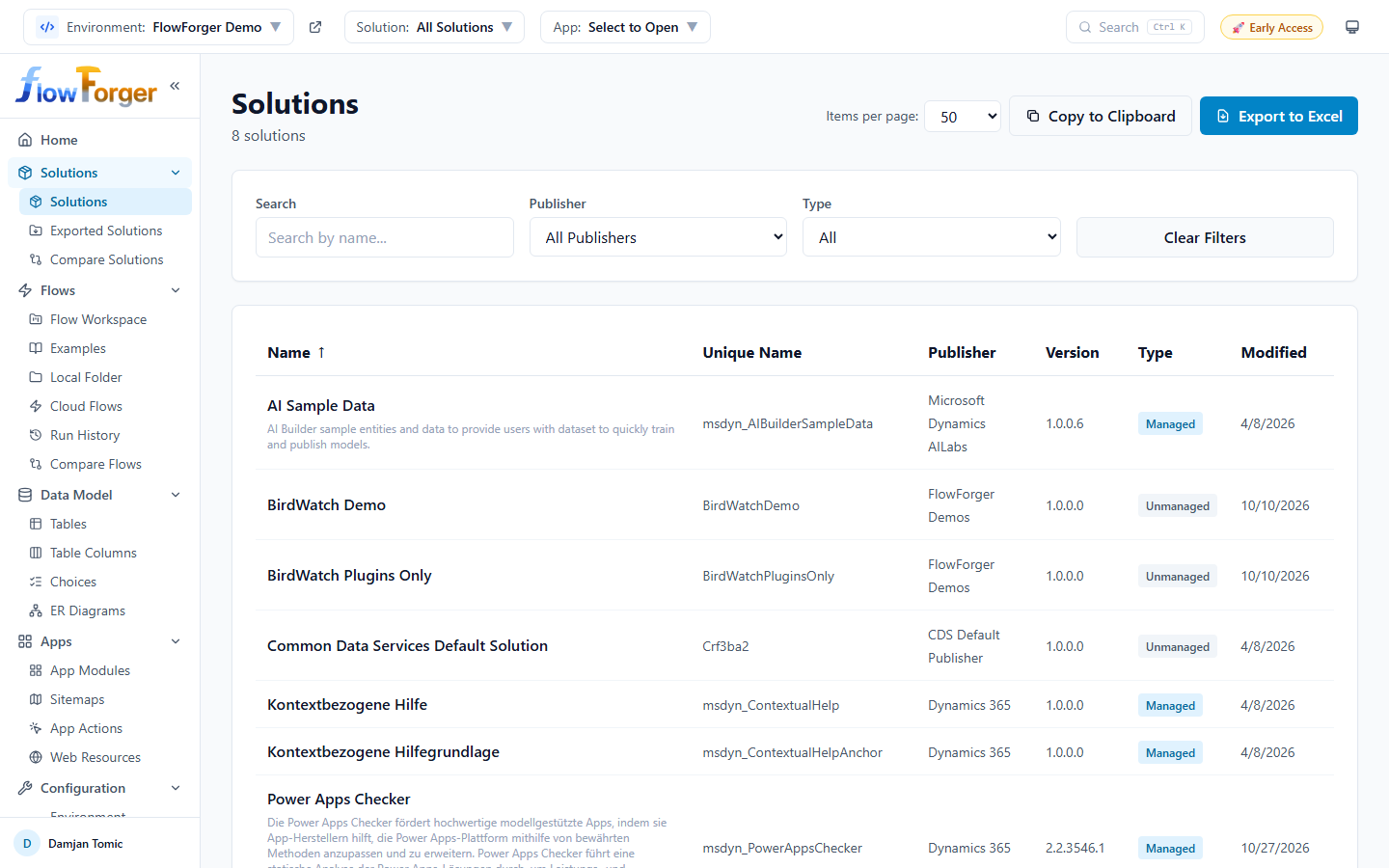 Solution Browser with filters and sortable columns.
Note: You must select an environment from the header before solutions will load. If no environment is selected, a prompt will guide you.
Table Columns
The table displays the following columns, all sortable by clicking the column header:
| Column | Description |
|---|---|
| Name | Solution display name with description shown below |
| Unique Name | The internal unique identifier for the solution |
| Publisher | The publisher who created the solution |
| Version | Solution version number (e.g., 1.0.0.0) |
| Type | Badge showing Managed (blue) or Unmanaged (gray) |
| Modified | Date the solution was last modified |
Filters
A filter bar sits above the table with the following options:
- Search -- Free-text search that matches against the solution name, unique name, and description.
- Publisher -- Dropdown populated with all distinct publishers found in the current environment. Select a publisher to show only their solutions.
- Type -- Choose between All, Managed, or Unmanaged solutions.
- Clear Filters -- Resets all filters to their defaults.
All filter selections are remembered and restored automatically when you return to the page.
Pagination and Export
The table supports pagination with configurable page sizes (10, 25, 50, 100, 200 rows). You can also export the displayed data:
- Copy to Clipboard -- Copies the filtered table data as tab-separated values.
- Export to Excel -- Downloads an Excel file with columns: Name, Unique Name, Publisher, Version, Type, Modified.
Navigating to a Solution
Click any row in the table to open the Solution Detail page for that solution.
Solution Detail
The Solution Detail page provides a comprehensive view of a single solution, organized into tabs.
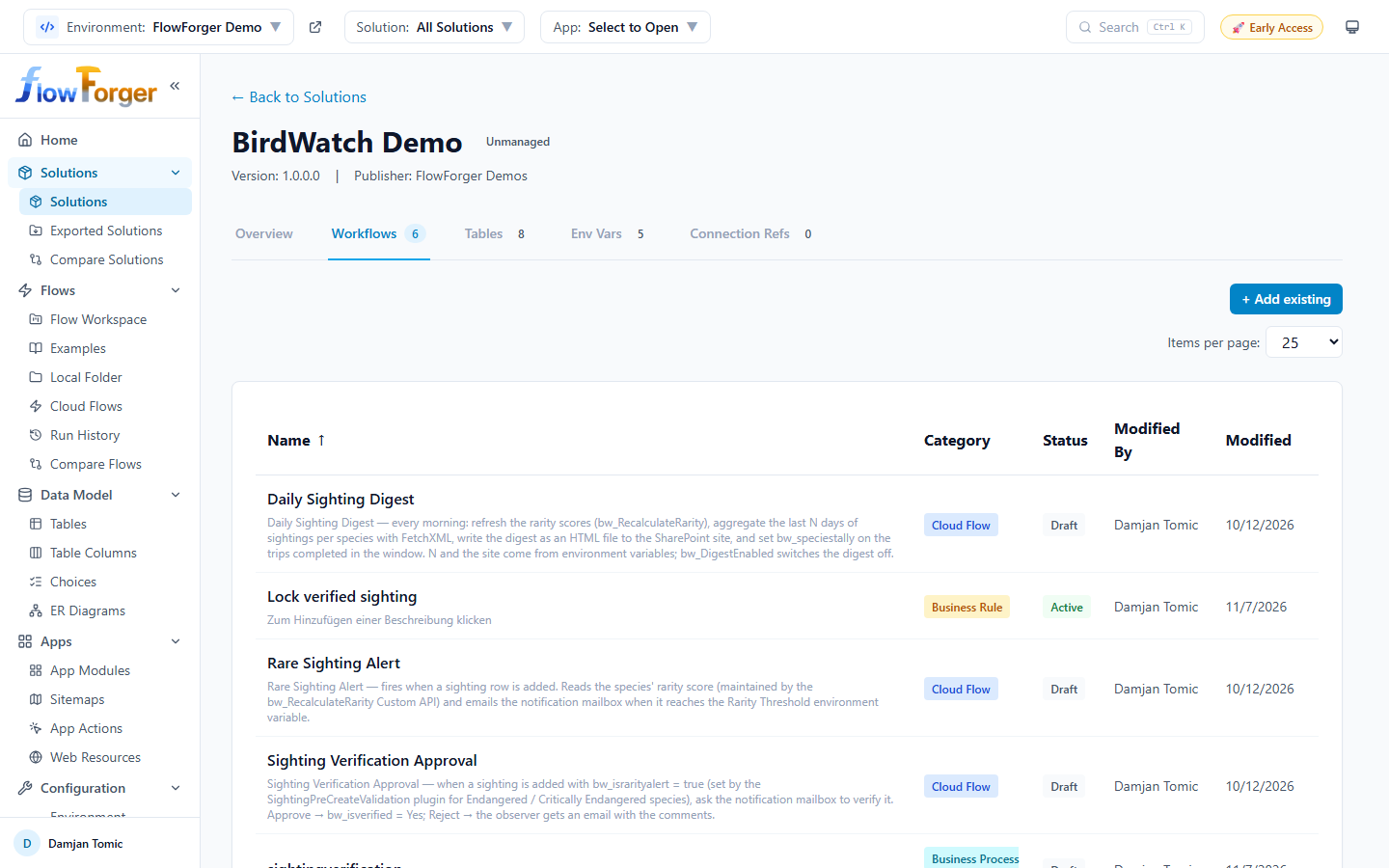 Solution Detail page showing the Workflows tab.
Header
At the top of the page you will see:
- A ← Back to Solutions link
- The solution display name with a Managed/Unmanaged badge
- Version number and publisher name
Tabs
The page has five tabs: Overview, Workflows, Tables, Env Vars, and Connection Refs. Each tab except Overview shows a count badge with the number of components of that type in the solution.
On an unmanaged solution, the Workflows, Env Vars, and Connection Refs tabs have a + Add existing button above the table. It opens a dialog (for example Add Existing Cloud Flows) where you search the environment, check the items to add, and add them to the solution. Items that fail to add are listed with their error. Managed solutions do not offer the button, because Dataverse does not allow adding components to them.
Overview
Displays solution metadata in a structured grid:
- Name, Unique Name, Version, Publisher, Type (Managed/Unmanaged), Created date, Modified date, and Description.
Below the metadata is a Components summary with a tile for each component type in the solution (Tables, Flows, Env Vars, Connection Refs, Choices, Views, Charts, Forms, Canvas Apps, and others) and the total count. Tiles for types that have their own tab are clickable and open that tab.
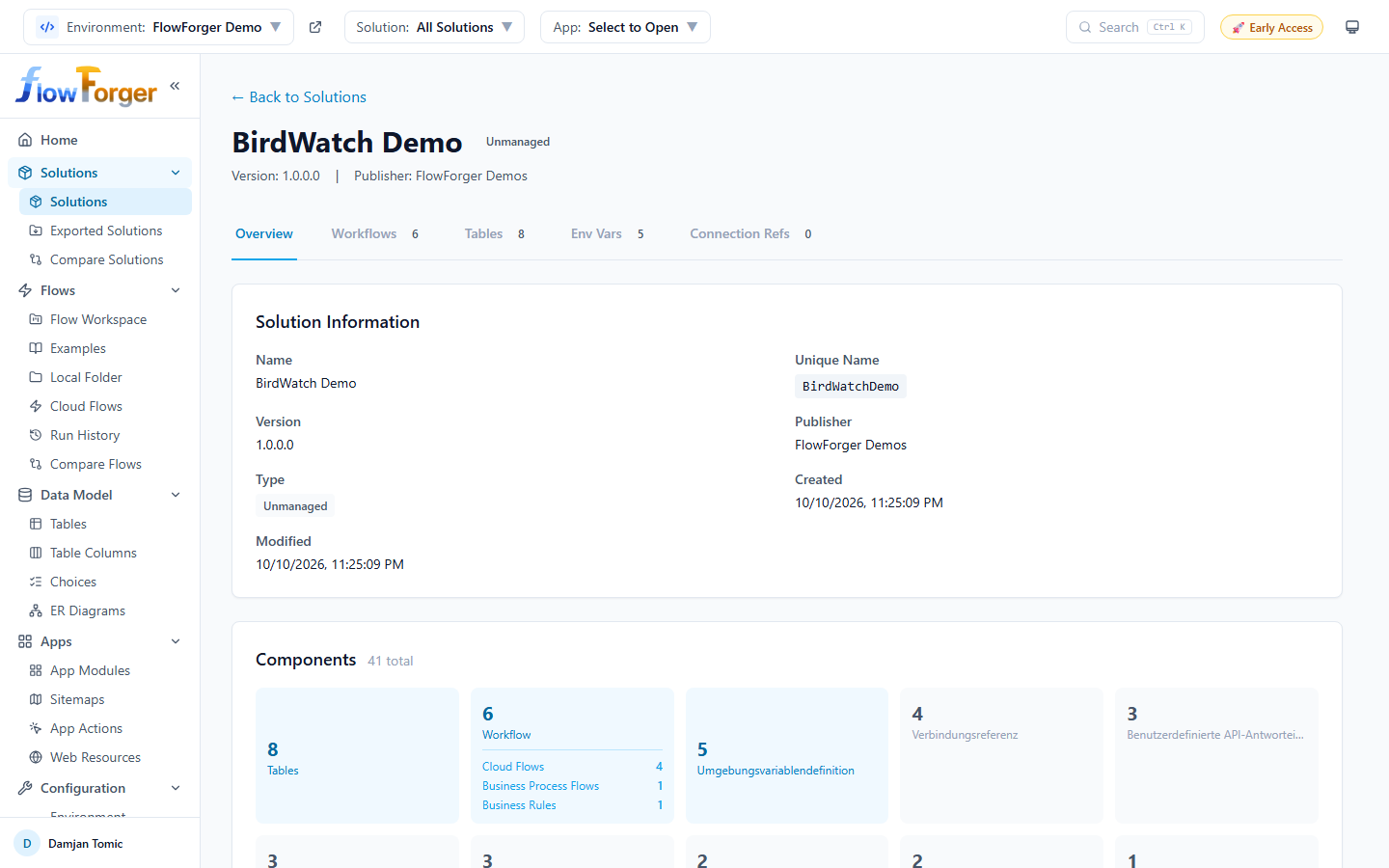 Component summary tiles showing counts for each type.
Workflows
A sortable table of the solution's processes: cloud flows and classic processes. Columns are Name (with description), Category (badge: Cloud Flow, Classic Workflow, Business Rule, Action, Business Process Flow, Dialog, or Desktop Flow), Status (Active/Draft badge), Modified By, and Modified. Click a cloud flow to open it in the Flow Editor; other categories open in the Workflow Viewer.
Tables
Lists all Dataverse tables (entities) in the solution. Columns include Display Name (clickable link to the Table Detail page), Logical Name (shown as a code badge), and Type (Custom or System). Pagination is available with configurable page sizes.
Env Vars
Shows environment variable definitions in the solution. Columns include Display Name (with description), Schema Name, Type (String, Number, Boolean, JSON, Data Source, or Secret), and Default Value.
Connection Refs
Lists connection references in the solution. Columns include Display Name (with logical name shown below), Connector name (extracted and formatted from the connector ID), and Status (Connected or Not Connected badge based on whether a connection is configured).
Exported Solutions
Navigate to Exported Solutions from the sidebar (under the Solutions group) to see a history of solution export/upload jobs for the current environment and re-download them.
Table columns:
- File Name -- The exported solution ZIP's filename
- Solution -- The solution's unique name
- Version -- The solution version at export time, resolved by matching the upload against the environment's export history (matches within a 1-hour window; shows a dash if no confident match is found)
- Status -- Active or Inactive badge
- Created -- When the export upload record was created
- Export Job ID -- The underlying export upload record ID (monospace)
Row actions:
- Download -- Fetches the exported solution content from Dataverse, decodes it, and downloads it as a
.zipfile
Supports pagination (10/25/50/100 per page) and export to clipboard or Excel.
Flow Workspace (Database-backed)
The Flow Workspace is a database-backed system for managing flows with version control. Unlike the Cloud Flows page, which reads flows directly from your environment, the workspace stores flows in the FlowForger Portal database with support for versioning, test scenarios, team sharing, and deployment to Dataverse.
Workspace List
Navigate to Flow Workspace from the sidebar. The workspace list shows all flows stored in the database.
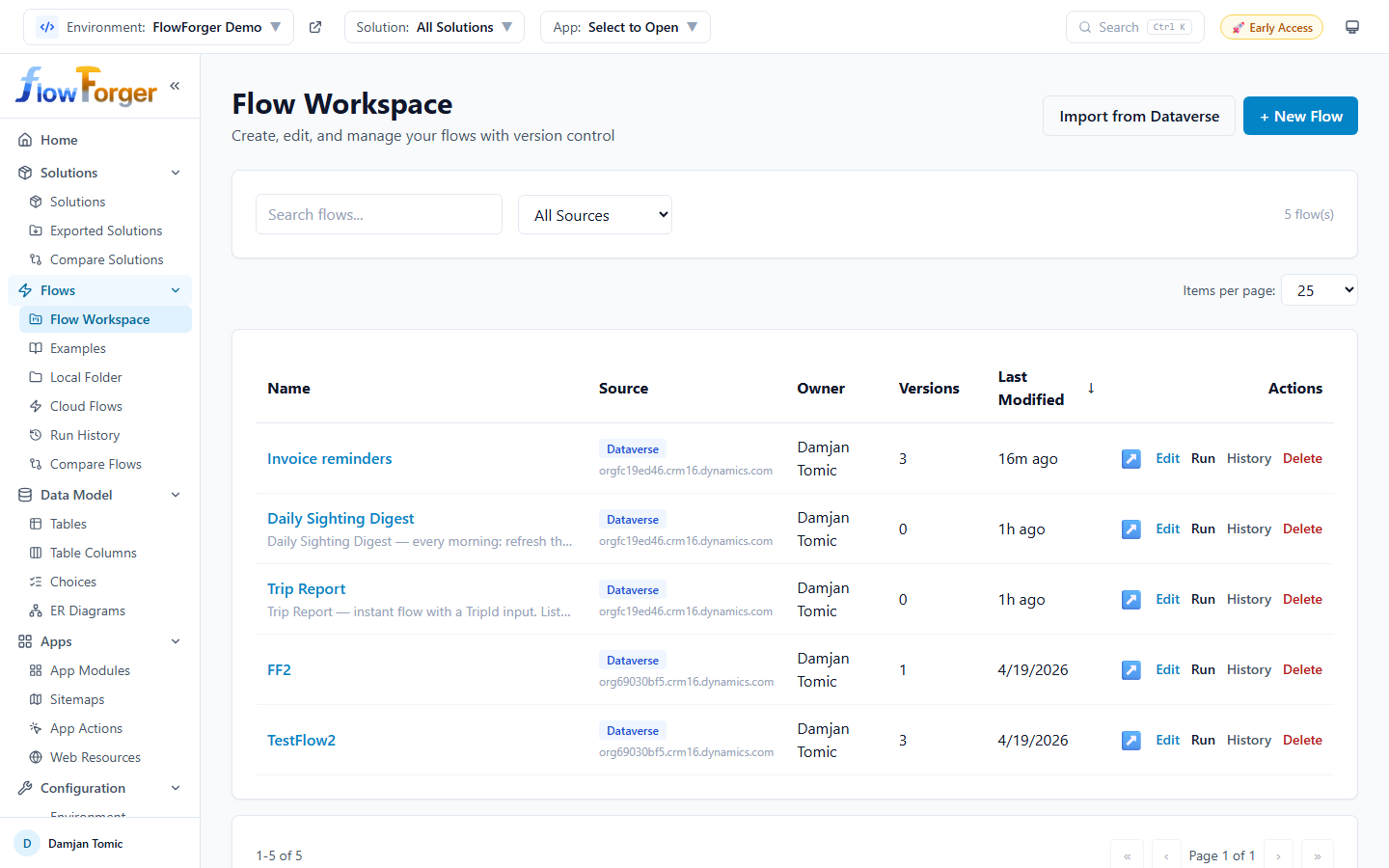 Flow Workspace list with source type badges and action buttons.
Header Actions
At the top of the page, two buttons are available:
- Import from Cloud Flows -- Opens the Cloud Flows page, where a row's ⋯ menu has Save to Workspace (see Copying an existing flow into the workspace).
- + New Flow -- Opens the Create New Flow dialog.
Filters
- Search -- Free-text search across flow names.
- Source Type -- Filter by source: All Sources, New, or Dataverse.
- A count of total flows is displayed on the right side.
Table Columns
| Column | Description |
|---|---|
| Name | Flow name (clickable link to open in the editor) with description below |
| Source | Badge indicating origin: New (green), Dataverse (blue), or Migrated (purple). Dataverse-sourced flows also show the environment hostname. |
| Owner | The user who created the flow |
| Versions | Number of saved version snapshots |
| Last Modified | Relative time since last modification (e.g., "5m ago", "2d ago") |
Row Actions
Each row includes action buttons on the right:
- ↗️ -- Opens the original flow in the Power Automate maker portal (only for Dataverse-sourced flows)
- Edit -- Opens the flow in the Flow Editor
- Run -- Opens the flow in the Flow Editor, where you run and debug it
- History -- Opens the flow's Version History without opening the editor
- Delete -- Deletes the flow from the workspace (with confirmation)
Source Types Explained
| Source | Description |
|---|---|
| New | Created in the workspace, or copied from an example or from a flow that is not stored in Dataverse |
| Dataverse | Copied from a Dataverse flow in a Power Platform environment. Tracks the source environment URL and workflow ID. |
| Migrated | Moved from an older browser-only storage format to the database |
Creating a New Flow
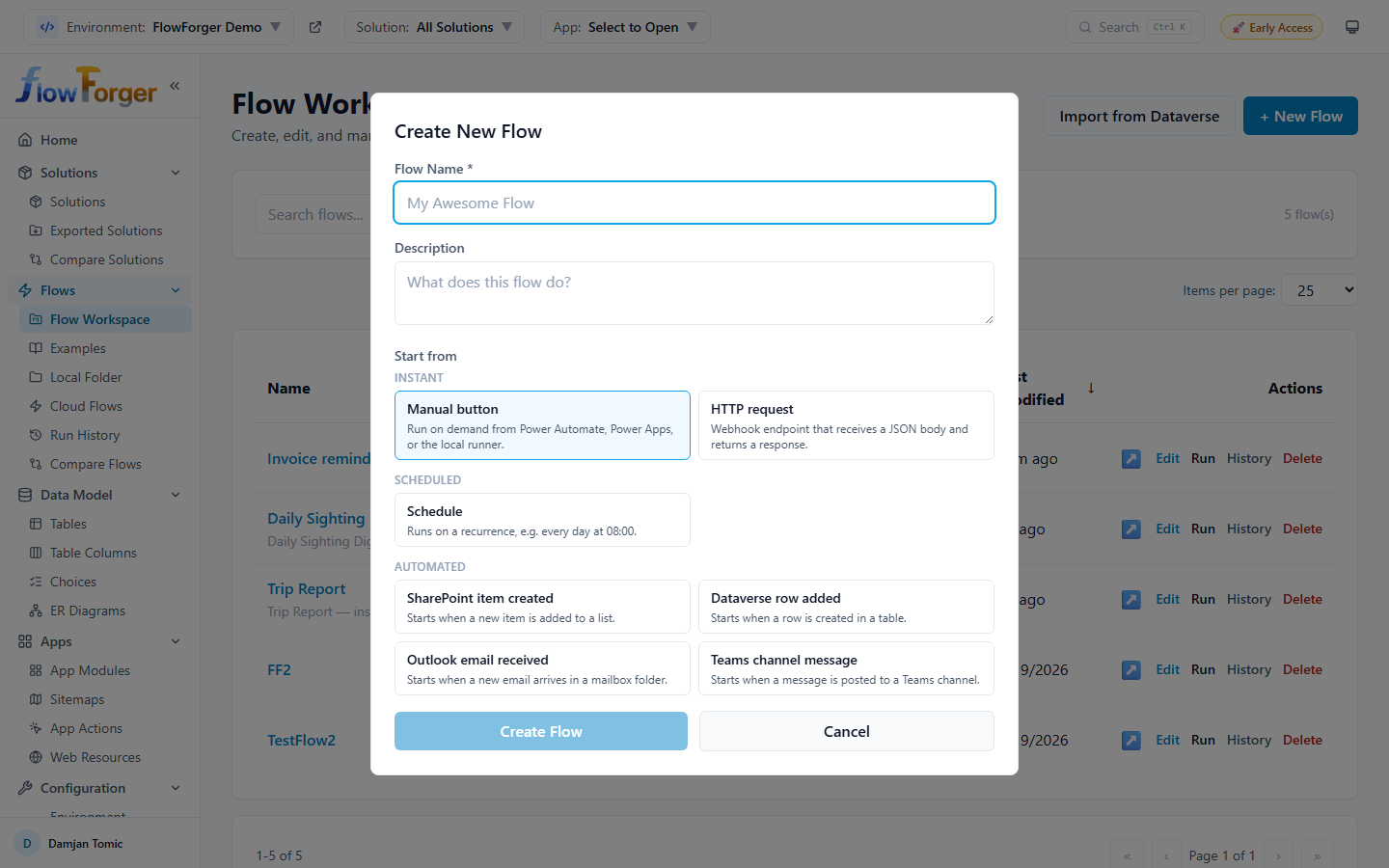 The Create New Flow dialog with its Start from trigger picker.
-
Click + New Flow in the workspace header.
-
Enter a Flow Name (required).
-
Optionally enter a Description.
-
Under Start from, pick the trigger the flow starts with. The choices are grouped like Power Automate's own Create page:
- Instant -- Manual button, HTTP request
- Scheduled -- Schedule
- Automated -- SharePoint item created, Dataverse row added, Outlook email received, Teams channel message
Your last choice is remembered for next time.
-
Click Create Flow.
-
The Flow Editor opens with a starter flow for that trigger. The flow is stored in the workspace when you first save it, so closing the editor without saving leaves nothing behind.
Tip: Press Enter in the name field to create the flow quickly.
A starter flow that uses a connector also includes the matching connection reference. The SharePoint one reads the site URL and list ID from flow parameters, the usual pattern for environment variables.
Copying an Existing Flow into the Workspace
To bring a flow from your environment into the workspace:
- Open Cloud Flows in the sidebar and choose the Current Environment search scope.
- On the flow's row, open the ⋯ (More actions) menu and choose Save to Workspace.
- A message confirms the copy. The flow now appears in the Flow Workspace.
A Dataverse flow is saved with source Dataverse and keeps a link to its environment and workflow ID. A flow that is not stored in Dataverse is saved as New.
Examples
Navigate to Examples from the sidebar (under the Flows group, route /examples) to browse ready-made example flows that come with predefined test data.
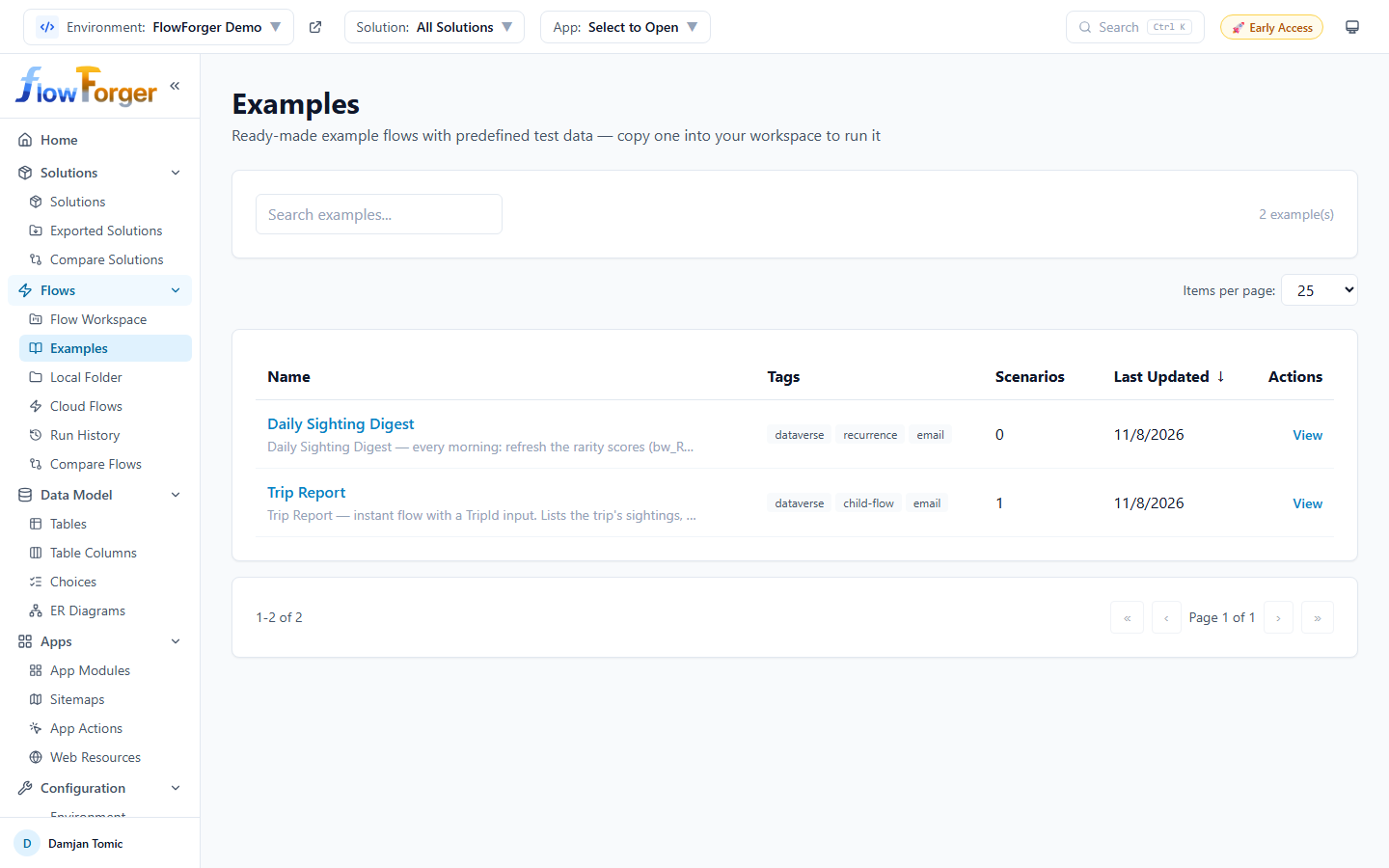 The Examples gallery with tags and scenario counts.
- Search examples... filters by name and description.
- The table shows each example's Name (with description), Tags, Scenarios (the number of predefined test scenarios), and Last Updated.
- Click the name or View to open the example's preview page.
Example Preview
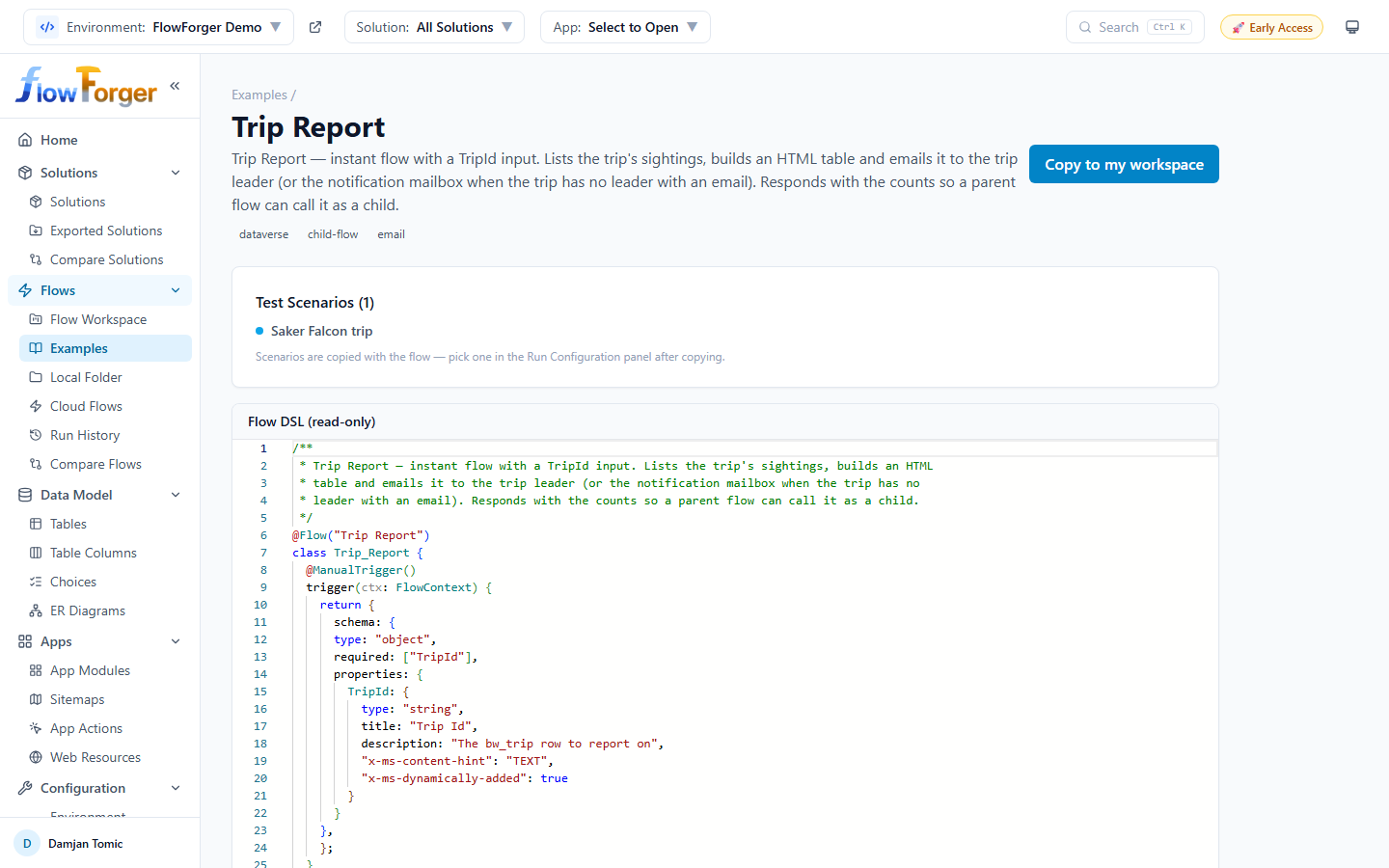 An example's preview with its test scenarios and read-only DSL.
The preview page (/examples/:id) shows the example's name, description, and tags, a Test Scenarios card listing its predefined test data, and the flow's DSL in a read-only editor.
Click Copy to my workspace to copy the flow and its test scenarios into your Flow Workspace. The copy opens in the Flow Editor; pick a scenario under Test Scenario in the Run Configuration tab and run it.
Local Folder
Navigate to Local Folder from the sidebar (under the Flows group, route /local) to edit .ff.ts DSL files directly on your computer's filesystem, with no database or server involved.
Note: This is a different storage model from the Flow Workspace above. Flow Workspace stores flows in the FlowForger Portal database; Local Folder reads and writes actual
.ff.tsfiles on disk via your browser's File System Access API, so it only works in Chromium-based browsers (Chrome, Edge). Files are read and written directly by the browser -- nothing is uploaded to a server.
Connecting a Folder
- Click Select Folder and choose a directory containing (or intended to contain)
.ff.tsflow files. - Your browser will prompt for permission to access that folder.
- Once granted, the file browser loads and lists all
.ff.tsfiles and subfolders.
If your browser restarts or the page is reloaded, you may need to click Grant Access to restore permission to the previously selected folder (or Pick Different Folder), since browsers don't keep filesystem permissions indefinitely.
Browsing Files
- Files and subfolders are listed with Filename, Modified (relative time), and Size columns.
- Click a subfolder to navigate into it; breadcrumbs at the top let you navigate back up.
- Use the Search files... box to filter files and folders by name within the current directory.
- Click Refresh to re-scan the current folder for changes made outside the browser (e.g., by an editor or git).
Creating and Editing Flows
- Click + New Flow to open Create New Flow File. Enter a Filename (the
.ff.tsextension is added if you omit it) and pick a trigger under Start from, the same picker as in the Flow Workspace. The file is created in the folder you are browsing, and the editor opens on it. - Click any file's name to open it in the Flow Editor, where the DSL is compiled to IR and Logic Apps JSON live. Save to File writes it back to the same file; Save Options also offers deploying to Dataverse.
- Click Delete on a file's row to remove it (with confirmation).
Changing or Disconnecting the Folder
- Change -- Prompts for a new folder to switch to.
- Disconnect -- Clears the stored folder reference (with confirmation). You can reconnect to the same or a different folder later.
Tip: Because Local Folder reads real files on disk, flows are naturally shareable and version-controllable with git or any file sync tool -- unlike Flow Workspace flows, which only exist in the database until exported. The same files work with the FlowForger CLI and the VS Code extension.
Cloud Flows
The Cloud Flows page lists the flows in your Power Platform environments, read directly from Dataverse and the Power Automate API without storing them in FlowForger. Navigate to Cloud Flows from the sidebar (under the Flows group, route /flows). The page title is All Cloud Flows, or Flows in <solution> when a solution is selected in the header.
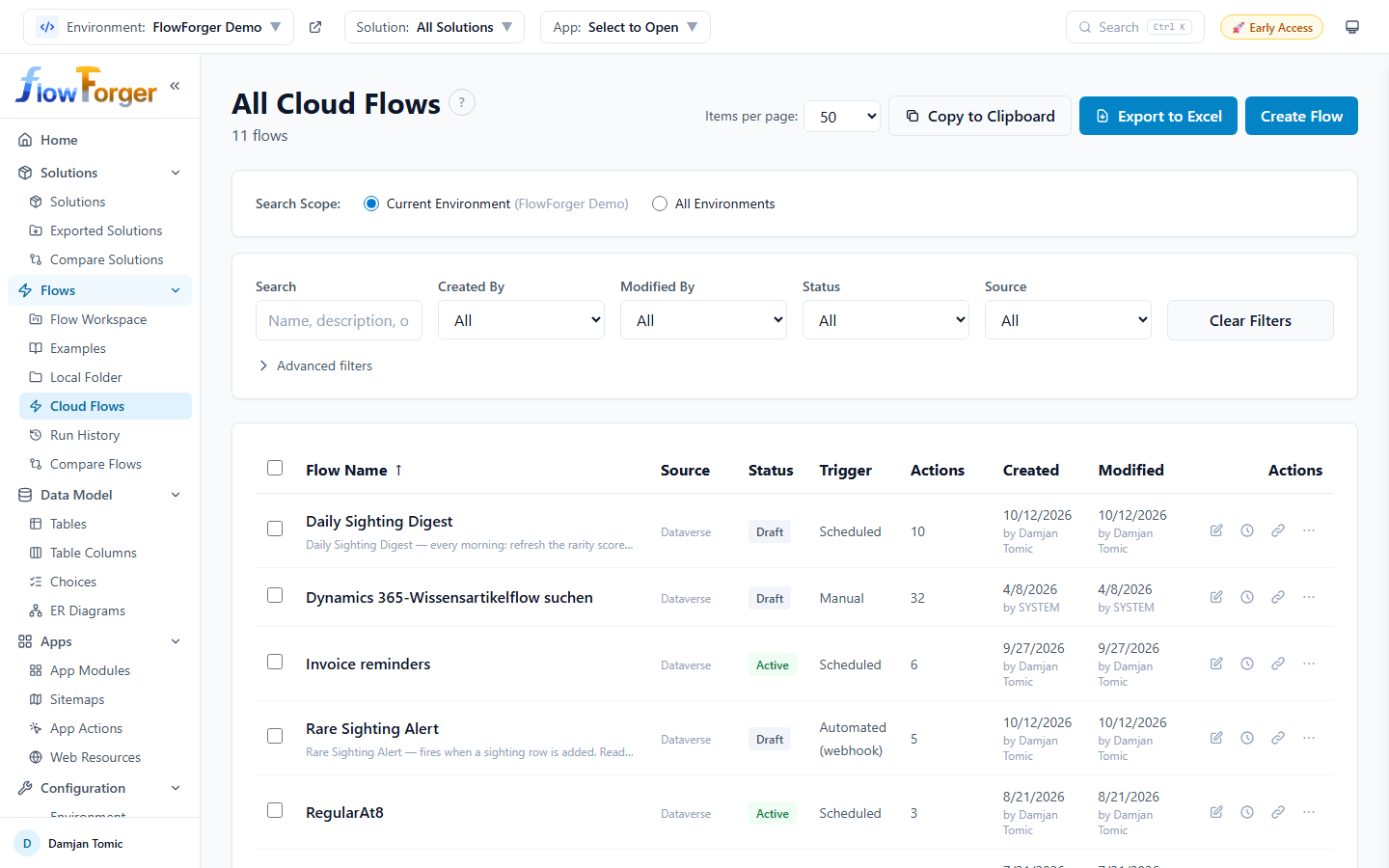 The Cloud Flows page in Current Environment scope, including a Cloud only row.
Click a row, or its pencil icon, to open the flow in the Flow Editor. The Create Flow button in the page header opens the editor with a new starter flow (manual trigger) that is created in Dataverse (as a draft, in the solution selected in the header) when you click Create Flow there.
Search Scope
At the top of the page, the Search Scope radio buttons choose between:
- Current Environment -- Lists the flows in the environment selected in the header, with full metadata: trigger type, action count, created/modified by, and the advanced filters.
- All Environments -- Lists flows across all environments you have access to, with an Environment column but limited metadata.
The selected scope is remembered.
In All Environments scope, a dismissible info card lists the limitations: the advanced filters are not available, Created By and Modified By are not returned, and bulk activate/deactivate/download/export, Add to Compare, and Save to Workspace need the Current Environment scope. Opening a flow, its run history, maker portal links, and trigger URLs work with each flow's own environment.
Cloud-only Flows
In Current Environment scope without a solution filter, the list also includes flows that are not stored in Dataverse: non-solution flows (for example, flows created from the SharePoint UI or the old "My flows" list) and flows shared with you. They have a Cloud only badge in the Source column; Dataverse-backed rows show Dataverse.
- Cloud-only flows open in the Flow Editor and are saved back with Save to Power Automate. Their connection references cannot be changed there (see Saving).
- They can be selected for bulk actions, saved to the workspace, added to Compare, and their run history opened, like any other row.
- The row action Add to solution (box icon) moves the flow into Dataverse (see Add to Solution).
- If these flows cannot be loaded (usually because you have not yet consented to the Power Automate API), an info box explains it and offers Connect Power Automate API, which opens the consent prompt.
Flows shared with you only to run them, and other users' personal flows, are not listed.
Table Columns
The columns shown depend on the search scope:
Current Environment columns:
| Column | Description |
|---|---|
| Flow Name | Name with description shown below |
| Source | Dataverse or Cloud only (only when no solution is selected) |
| Status | Active (green) or Draft (gray) badge |
| Trigger | The trigger type (e.g., "Recurrence", "OpenApiConnection - ApiConnectionWebhook") |
| Actions | Count of all actions in the flow (hover to see types) |
| Created | How long ago the flow was created, and by whom (hover for the exact time) |
| Modified | How long ago the flow was last modified, and by whom (hover for the exact time) |
All Environments columns:
| Column | Description |
|---|---|
| Flow Name | Name with description |
| Environment | Environment name (hover for its ID) |
| Status | Active or Draft badge |
| Last Modified | How long ago the flow was last modified |
Filters
All filter selections are remembered. Because they persist across sessions, active filters are shown as chips above the filter card (N filters active:); click a chip to remove that filter, or Clear all.
Basic filters:
- Search -- Free-text search across flow names, descriptions, and the flow definition.
- Created By / Modified By -- Dropdowns with all distinct creators and modifiers (Current Environment only).
- Status -- All, Active, or Draft.
- Source -- All, Dataverse, or Cloud only (Current Environment scope without a solution filter).
- Clear Filters -- Resets all filters.
Advanced filters (Current Environment only; click Advanced filters to show them, a badge counts the active ones):
- Trigger -- All trigger types found across flows.
- Action -- All action types found across flows.
- Environment Variable -- All environment variables referenced by flows.
- Connection Reference -- All connection references used by flows.
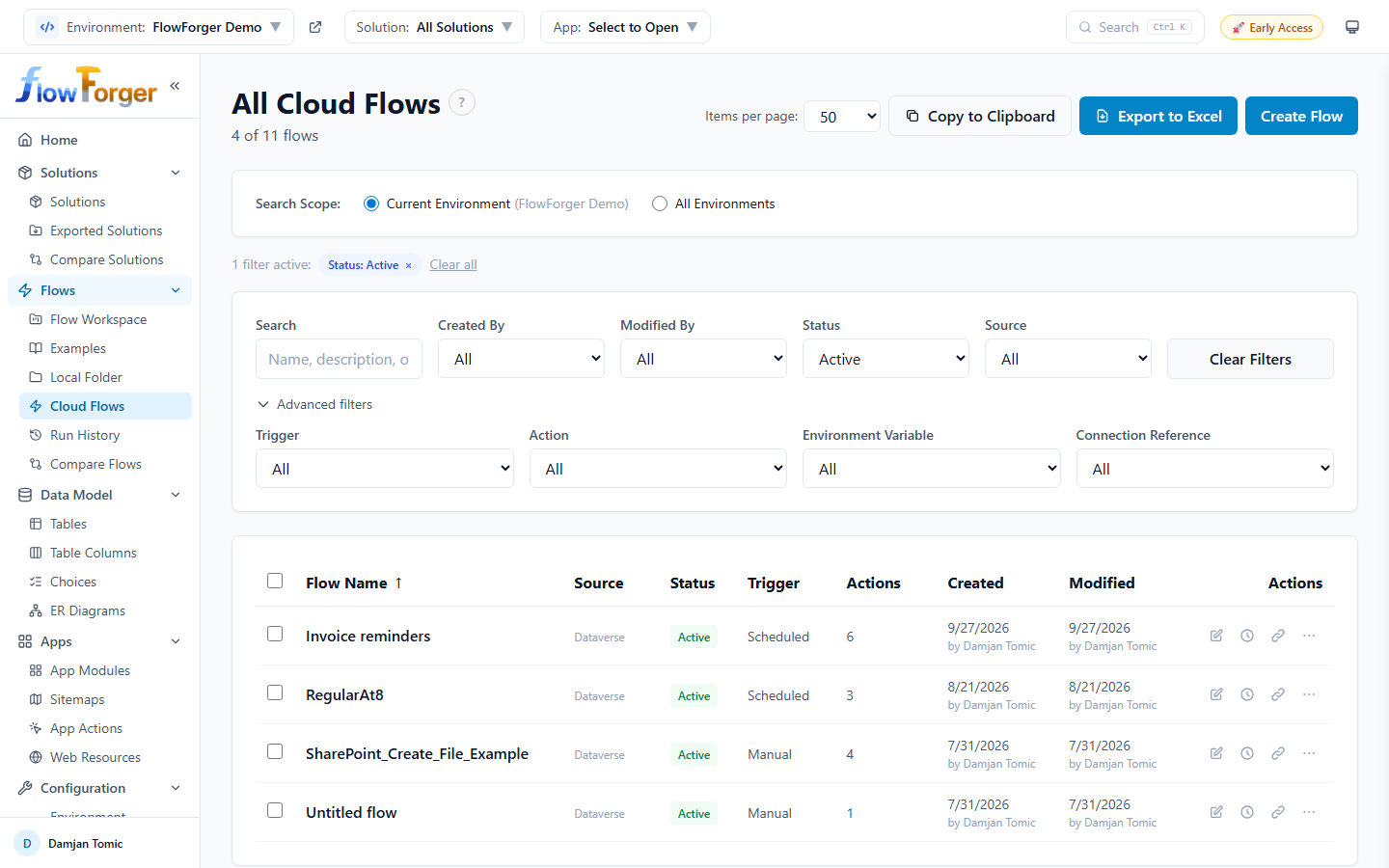 The filter card with the Source filter and the advanced filters expanded.
Row Selection and Bulk Operations
Checkboxes on the left side of each row allow multi-row selection. The select-all checkbox in the header selects only the rows that match the current filters. When one or more rows are selected, a bulk actions bar appears:
| Bulk Action | Description |
|---|---|
| Activate N | Turns on all selected flows |
| Deactivate N | Turns off all selected flows |
| Download N | Downloads all selected flows as a ZIP file of Logic Apps JSON files |
| Export N ▾ | Downloads a ZIP in one of three formats: All formats (folders) (a folder per flow with logicapps.json, ir.json, and dsl.ff.ts), DSL only (.ff.ts), or JSON only (.json) |
| Trigger URLs N | Collects the HTTP trigger URLs of the selected flows |
| Clear Selection | Deselects all rows |
Activate, Deactivate, Download, and Export are available in Current Environment scope only. Each shows its progress (for example Activating 3/10…) while it runs. Cloud-only flows are included: they are turned on and off through the Power Automate API.
Row Actions
Each flow row has these icons on the right:
| Action | Description |
|---|---|
| Pencil (Open in the flow editor) | Opens the flow in the Flow Editor |
| Clock (Run history) | Opens the Flow Run History page for this flow |
| Box (Add to solution) | Cloud-only flows only: moves the flow into a solution (see below) |
| Link (Get trigger URL) | Shows the flow's HTTP trigger URL in a Trigger URL dialog with Copy to Clipboard |
| ⋯ (More actions) | Open in Maker Portal ↗, Flow details in Maker Portal ↗, and in Current Environment scope Add to Compare and Save to Workspace |
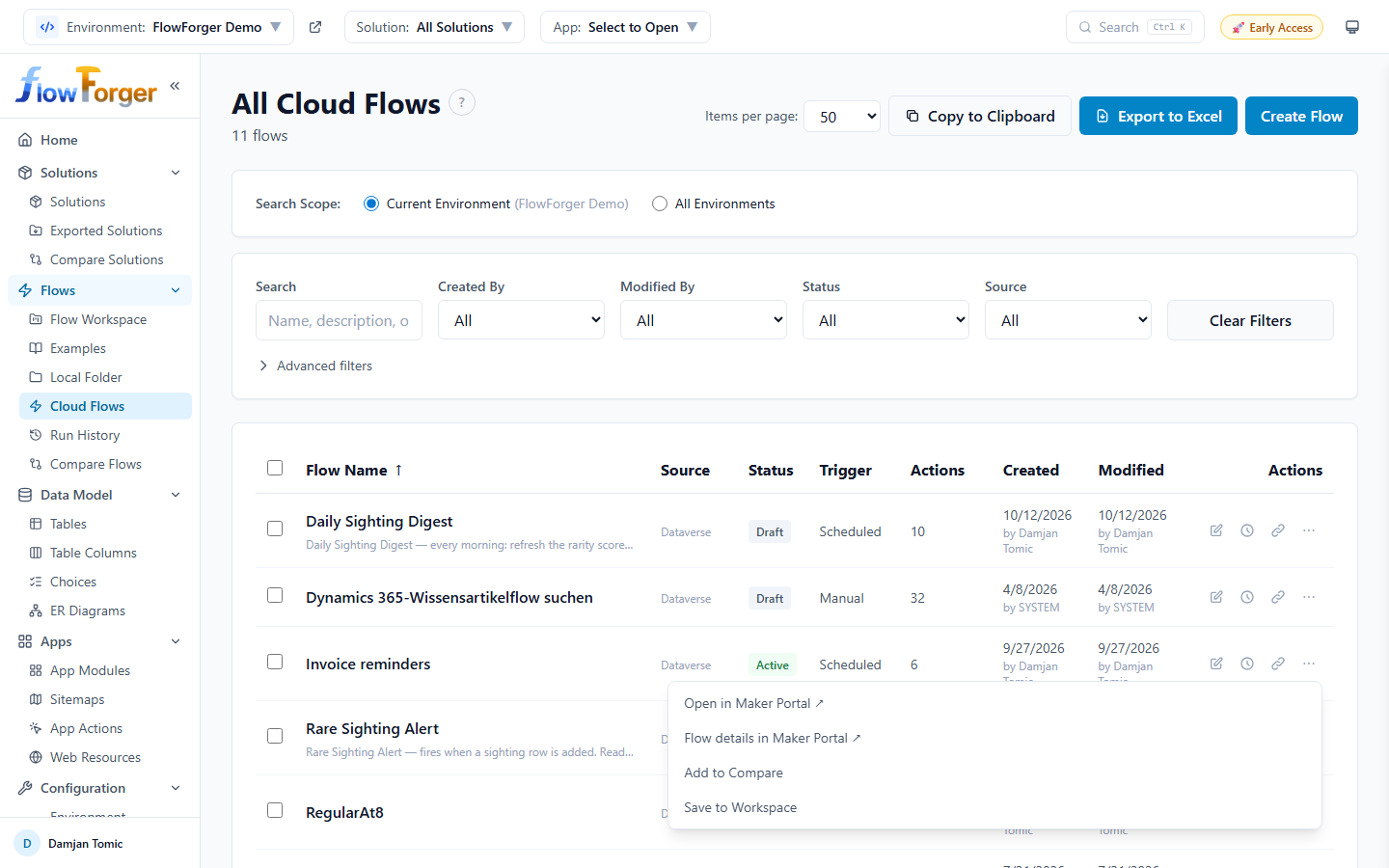 The ⋯ menu of a flow row.
Add to Compare pins the flow to the comparison tray (see Compare Tools). Save to Workspace copies the flow into the Flow Workspace.
Add to Solution
A cloud-only flow can be moved into Dataverse so that it becomes a solution-aware flow:
- Click the Add to solution (box) icon on the flow's row.
- In the Add flow to solution dialog, pick the Target solution. Only unmanaged solutions are listed; if there are none, create one first.
- Click Add to solution.
This is the same operation as the maker portal's Add existing → Outside Dataverse. The flow keeps its identity, so its run history and trigger URLs stay attached. If the move fails, the flow remains a non-solution flow, unchanged, and the dialog shows the error.
Export Options
The table toolbar provides two export formats for the list itself:
- Copy to Clipboard -- Copies filtered data as tab-separated values.
- Export to Excel -- Downloads an Excel file with columns: Flow Name, Status, Trigger, Actions, Created By, Created, Modified By, Modified (or Flow Name, Environment, Status, Last Modified in All Environments scope).
Pagination
The table supports configurable page sizes: 10, 25, 50, 100, or 200 rows per page. The default is 50.
Comparing Flows
Comparing two flows lives on the Compare Tools page at /compare. See Compare Tools for pinning flows and viewing their differences.
Workflow Viewer (Classic Workflows)
Classic Dataverse processes (background workflows, business rules, actions) open in the Workflow Viewer at /workflows/:flowId, for example from a solution's Workflows tab. This is a separate, older automation type from cloud (Power Automate) flows.
Header
A ← Back link, the workflow name, a category badge (Classic Workflow, Business Rule, Action, etc.), and an Active/Draft status badge. If the workflow targets a specific table, the entity logical name is shown.
Toolbar
- Activate / Deactivate -- Toggles the workflow's state in Dataverse.
- Download XAML -- Downloads the raw XAML definition as a
.xamlfile.
Tabs
- Metadata -- Editable Name and Description fields, plus read-only Category, Entity, Status, Workflow ID, and Created/Modified (with author) details. Click Save Metadata to persist changes.
- XAML -- A Monaco XML editor showing the raw workflow XAML. Edit and click Save XAML to persist. A dot on the tab and an "Unsaved changes" note indicate a dirty editor.
- Structured View -- For workflows FlowForger recognizes (business rules and custom workflow actions), the raw XAML is parsed into a readable structured view. Other workflow types show a message pointing you to the XAML tab instead.
Tip: Editing XAML directly is an advanced operation -- it's the same definition format Dataverse's classic workflow designer produces, so a malformed edit can break the workflow. Use Download XAML to keep a backup before making changes.
Flow Run History
The Flow Run History page displays the cloud execution history of one flow. Open it from the Cloud Flows page (clock icon on a flow row), from a failed run on the Home dashboard, or directly via /flows/:workflowId/history. The editor's Run History dock tab shows the same runs without leaving the editor (see Run History tab).
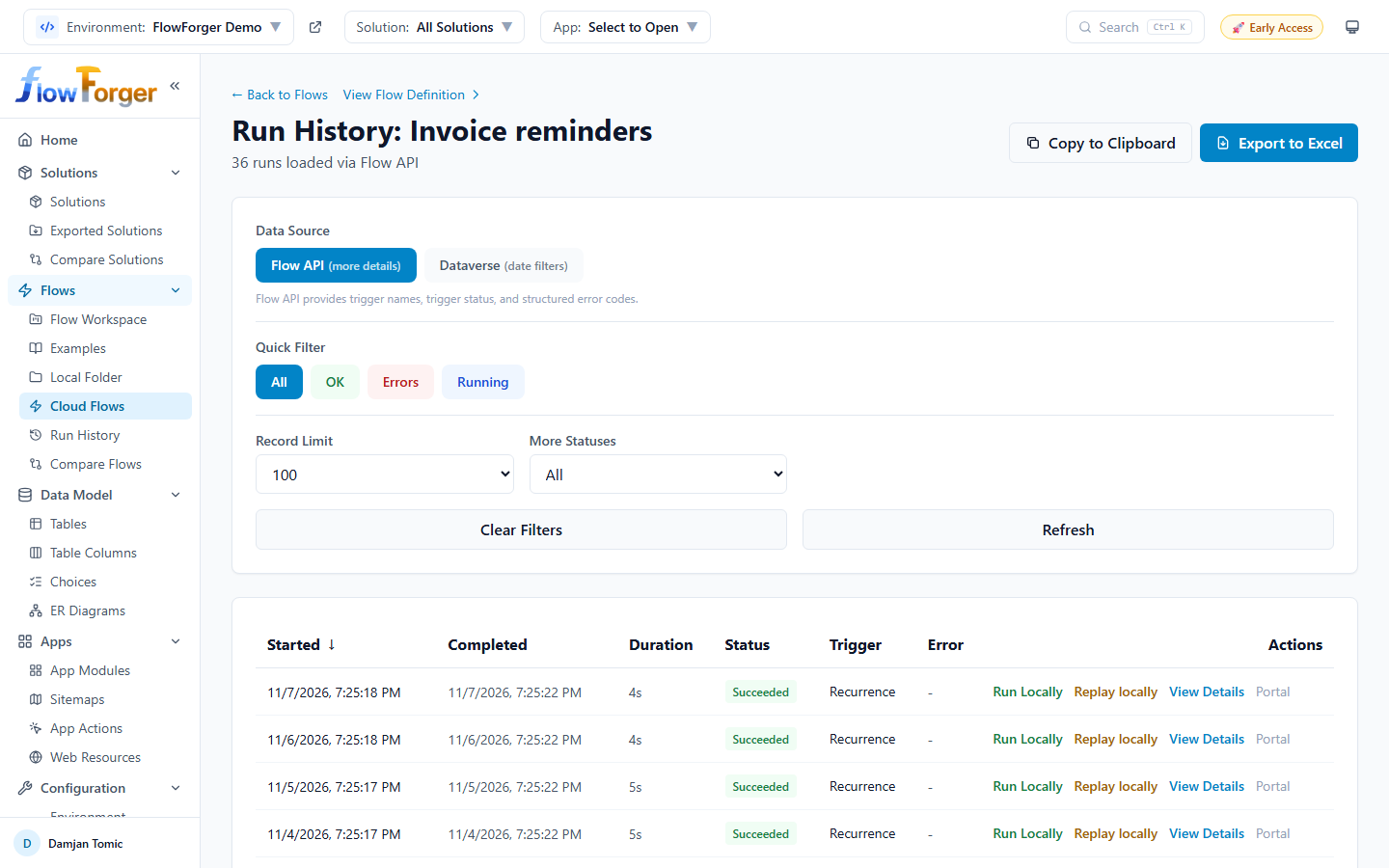 Flow Run History with the Replay locally action on each run.
Data Sources
The page supports two data sources, selectable via toggle buttons:
| Data Source | Description |
|---|---|
| Flow API (default, "more details") | Trigger name, trigger status, structured error codes, and input/output links. Limited to 250 records. |
| Dataverse ("date filters") | Date range filtering and higher record limits (up to 5000), with less detail (trigger type instead of trigger name). Not offered for cloud-only flows. |
Filters
- Quick Filter -- Buttons for All, OK (Succeeded), Errors (Failed), and Running.
- More Statuses -- Dropdown with every status, including Cancelled, Skipped, and Waiting.
- Record Limit -- How many records to fetch (50, 100, 250; Dataverse also supports 500, 1000, 2000, 5000).
- Started From / Started To -- Date range filters (Dataverse data source only).
- Clear Filters -- Resets all filters.
- Refresh -- Re-fetches the data.
Table Columns
| Column | Description |
|---|---|
| Started | Start date and time |
| Completed | End date and time (or dash if still running) |
| Duration | Formatted duration (ms, s, m, or h) |
| Status | Color-coded badge: Running (blue), Succeeded (green), Failed (red), Cancelled (gray), Skipped (yellow), Waiting (purple) |
| Trigger | Trigger name and status (Flow API) or trigger type (Dataverse) |
| Error | Error code and message (truncated, hover for full text) |
Row Actions
| Action | Description |
|---|---|
| Run Locally | Fetches the trigger data of this run and opens the Flow Editor with it in the Run Configuration tab, so you can run the flow locally with the same input |
| Replay locally | Opens the Flow Editor with this run replayed: the trigger outputs are the input, and every connector, HTTP, and child-flow action is pinned to the outputs the cloud recorded (per loop iteration, a failure as a failure). Everything else recomputes. Safe mode is on, so an external call without a pin stops the run before it is sent. Not offered for runs that are still running. See Replaying a cloud run. |
| View Details | Opens the Run Details panel (slide-over) |
| Portal | Opens the run in the Power Automate portal |
Run Details Panel
Clicking View Details opens a slide-over panel that displays the full details of a single run:
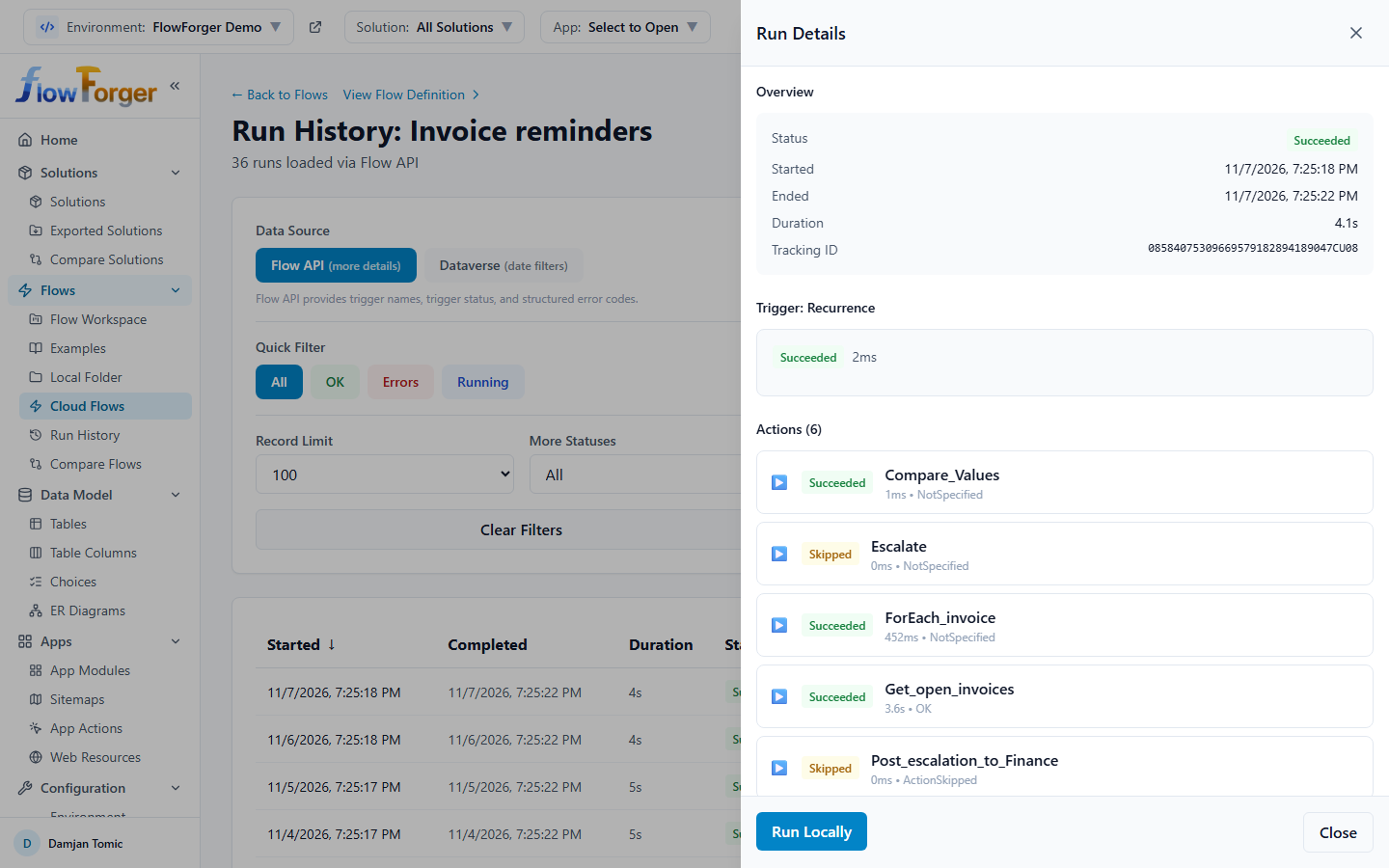 Run Details panel showing action-by-action execution with inputs and outputs.
The panel shows:
- The run overview (status, start and end time, duration, tracking ID, and the run error if any)
- The trigger, with its error, inputs, and outputs
- A list of all actions in the run (Actions (N)) with their status, duration, and type, each expandable to its inputs and outputs
- Content viewers that fetch large payloads on demand
- A Run Locally button to run the flow in the Flow Editor with this run's trigger data
Cross-Environment Support
When you open run history from the All Environments view, the flow's environment is passed along, and the page loads the flow and its runs from that environment rather than the one selected in the header.
Export
Run history can be exported via:
- Copy to Clipboard -- Tab-separated values of all visible runs.
- Export to Excel -- Downloads an Excel file with all columns appropriate to the selected data source.
Empty State
If no runs are found, a message explains possible reasons:
- The flow has not been run yet.
- The flow is not part of a Dataverse solution, or run history is not enabled in the environment (Dataverse data source).
- Run history has exceeded the retention period (default 28 days).
With the Dataverse data source, it suggests switching to Flow API, which may have more complete run history.
Environment Run History
Navigate to Run History from the sidebar (under the Flows group, route /run-history) to see flow runs across the entire environment, rather than one flow at a time.
A Heads up notice explains that this view reads the Dataverse run table: recent runs can take a few minutes to appear, only solution-aware flows are included, and runs are kept for about 28 days. If a run you expect is missing, open that flow's own history with Flow History, which also queries the Power Automate API and usually shows runs sooner.
Filters
- Time Range -- Last 15 min, Last 1 hour, Last 6 hours, Last 24 hours, Last 7 days, or Custom (shows Started From / Started To fields).
- Status -- All, OK, Errors, and Running buttons, plus a dropdown with every status.
- Record Limit -- 100 to 5000 runs.
- Limit to solution: <name> -- Shown when a solution is selected in the header; restricts the list to runs of that solution's flows.
- Refresh -- Re-fetches the data.
Table Columns
| Column | Description |
|---|---|
| Started | Run start time |
| Flow | The flow's name, linking to that flow |
| Status | Color-coded status badge |
| Duration | Formatted run duration |
| Trigger | Trigger type |
| Error | Truncated error message, if any (hover for full text) |
Row Actions
| Action | Description |
|---|---|
| View Details | Opens the Run Details panel for the run |
| Run Locally | Opens the flow in the editor with this run's trigger data in the Run Configuration tab |
| Flow History | Opens the per-flow Flow Run History page, where Replay locally is available |
| Portal | Opens the run in the Power Automate portal |