SharePoint Explorer
This guide covers FlowForger Portal's SharePoint browsing tools in the SharePoint group of the sidebar, which let you explore lists, libraries, and files on any SharePoint site directly from the web app -- useful for finding the GUIDs and identifiers that Power Automate SharePoint connector actions expect, and for migrating list schemas between sites. For running REST calls or SQL-style queries against SharePoint, see Query Consoles.
Both pages need the app's SharePoint permissions; if you get permission errors, use Grant App Permissions as described in Settings → App Permissions.
Lists Browser
Navigate to SharePoint → Lists Browser to explore lists and document libraries on any SharePoint site.
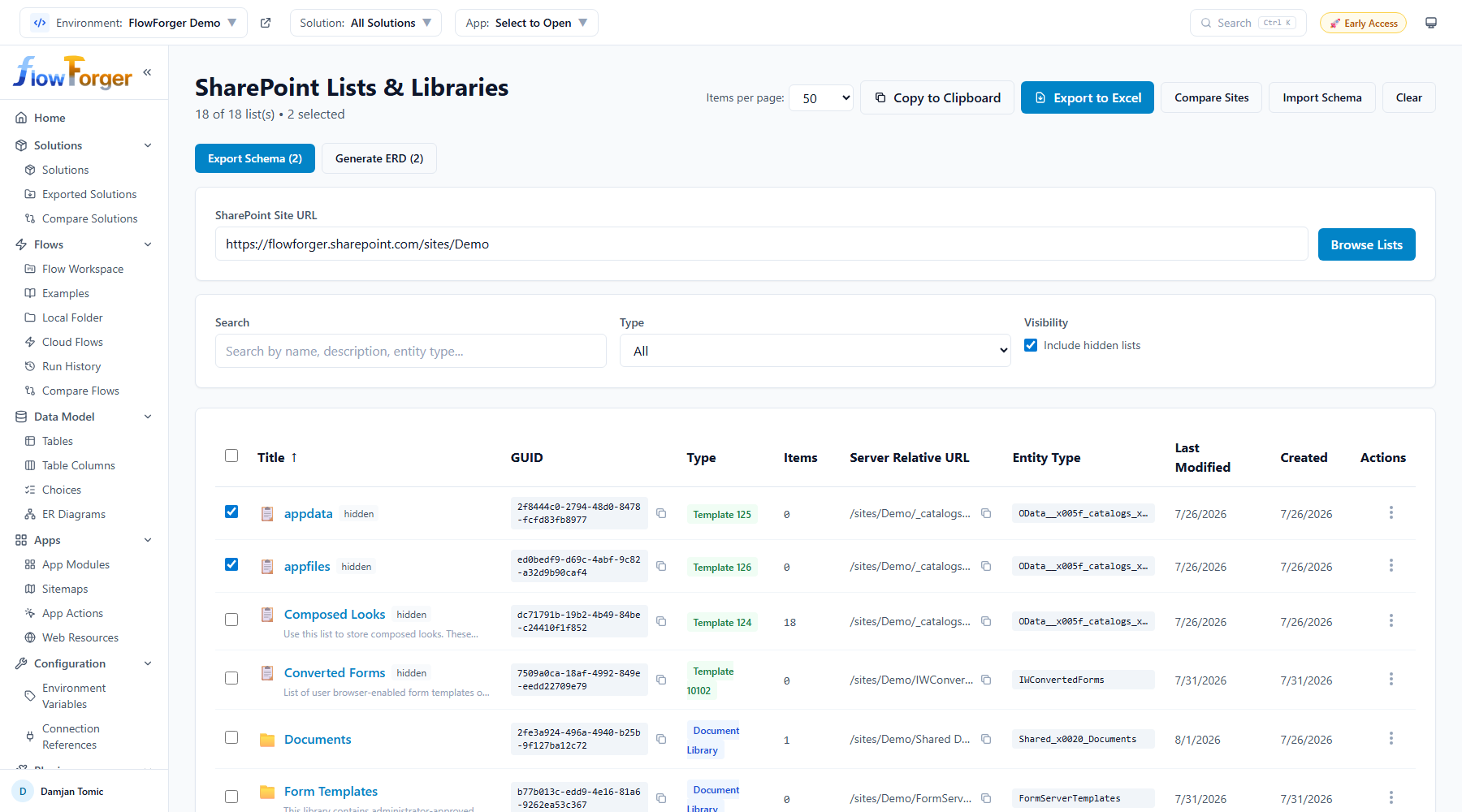 The Lists Browser showing the lists and libraries of a site
Getting Started
- Enter a SharePoint Site URL (e.g.,
https://contoso.sharepoint.com/sites/MySite) - Click Browse Lists (or press Enter)
If no site URL is saved yet, FlowForger Portal tries to prefill one automatically: first your tenant's root site, then a URL derived from your sign-in name (this only works for *.onmicrosoft.com accounts). The last site you browsed is remembered in your browser for next time.
Table Columns
- Title -- The list/library display name (folder icon for libraries, list icon for other lists), linking out to the list in SharePoint. Hidden lists show a "hidden" badge, and a description line appears underneath when set.
- GUID -- The list's internal identifier, with a copy button. This is the value Power Automate's SharePoint connector actions expect once you're referencing a list by ID rather than by display name.
- Type -- The template label (e.g., "Document Library", "Generic List", "Custom List")
- Items -- Current item count
- Server Relative URL -- The list's root folder path relative to the site, with a copy button
- Entity Type -- The list item entity type name used for REST API request bodies (also copyable)
- Last Modified / Created -- Dates
Filters
- Search -- Free-text search across title, description, and entity type
- Type -- All, Lists only, or Libraries only
- Visibility -- "Include hidden lists" checkbox (hidden lists are shown by default)
Row Actions
Each row has an actions menu with:
- View Columns -- Opens a modal listing every field on the list
- Make Hidden / Make Visible -- Sets or clears the list's Hidden property in SharePoint (hidden lists do not appear in the site's Site Contents)
- Copy PA Reference -- Copies a small JSON snippet pairing the site URL with the list's GUID, ready to paste into a flow's SharePoint connector action parameters
- Generate Script -- Opens the script modal for just this one list
- Refresh Item Count -- Re-fetches the item count for that list without reloading the whole page
View Columns Modal
Lists every field defined on the selected list or library:
- Display Name, Internal Name (code badge), Type (e.g., Text, Choice, Lookup, Calculated), Required flag, Default value, Description
- A Custom badge distinguishes user-added fields from system/base-type fields
- Choice fields show their option count; Lookup fields show which list they point to
- Copy to Clipboard exports the visible columns as tab-separated text
- Generate Script jumps straight to the script modal for the list
Generate Script
Produces a recreation script for a single list's schema, toggleable between two formats:
- PnP PowerShell -- A
New-PnPList/Add-PnPFieldscript that recreates the list and its custom columns on another site - JSON Schema -- FlowForger's own JSON schema format (the same shape used by Export Schema below)
Only scriptable custom columns are included -- system, hidden, and base-type fields are excluded.
Export Schema (multi-list)
Select one or more lists with the row checkboxes, then click Export Schema (N) in the toolbar to export a schema definition covering every selected list at once:
- Column definitions, including Choice options, Lookup targets, and Calculated field formulas
- Views (view fields, query, row limit, paging, hidden/default flags)
- Optionally, list item data -- toggle "Include list item data (content)" to also pull row content. Text, Note, Number, Currency, Boolean, DateTime, Choice, MultiChoice, and URL values are captured as-is; Lookup values are captured as display text and User/Person values as email/UPN, both remapped to target-side IDs on import. Attachments and library files are not included. Content is capped at 5,000 items per list, with a warning if a list was truncated.
- Folder structure for libraries, so folders can be recreated ahead of their items on import
The resulting JSON can be copied to the clipboard or downloaded as a .json file.
Import Schema
Click Import Schema in the toolbar to recreate lists -- and optionally their data -- on a target site from a previously exported schema:
- Paste the exported JSON, or load it from a file
- Select which lists in the schema to import
- Enter the target SharePoint site URL
- If the schema includes item or folder data, optionally toggle "Also import item data"
- Click Create N List(s) to run the import
The import runs in stages, streamed to a live execution log: lists are created first (an existing list with a matching title is reused rather than recreated), then regular columns, then Lookup columns (deferred until target lists exist), then Calculated columns (deferred until referenced columns exist), then views, and finally item content -- rows are inserted first, then Lookup values are patched in a second pass once every list's rows exist so they can be matched by display value. Unsupported column types and unresolved Lookup/Person references are skipped with a warning rather than failing the whole import. Re-running an import with content enabled does not de-duplicate existing items.
Compare Sites
Click Compare Sites (available once a site is loaded) to diff the currently loaded site's lists against a second site, matched by title:
- Lists are matched case-insensitively and grouped as Both Sites, Only Site A, or Only Site B
- Filter pills narrow the comparison to one group
- Each row shows type and item count for both sites where available
- Results can be copied to the clipboard as tab-separated text
Generate ERD
Select one or more lists and click Generate ERD (N) to open a full-screen entity-relationship diagram of the selected lists and their Lookup relationships to each other. Lookups pointing to lists outside the loaded site are omitted, with a count shown in the header. Diagrams can be saved and reopened later, scoped to the site URL.
File Identifiers
Navigate to SharePoint → File Identifiers to resolve a SharePoint file or folder URL into the underlying Microsoft Graph drive item identifiers -- the drive ID and item ID that many SharePoint/OneDrive connector actions require instead of a friendly path.
Getting Started
- Click Browse SharePoint
- Paste a SharePoint file or folder URL (e.g.,
https://contoso.sharepoint.com/sites/MySite/Shared Documents/...) - Click Browse (or press Enter)
The URL is resolved through Microsoft Graph. If it points to a folder, its contents are listed; if it points to a single file, that file's identifiers are shown directly without listing a folder.
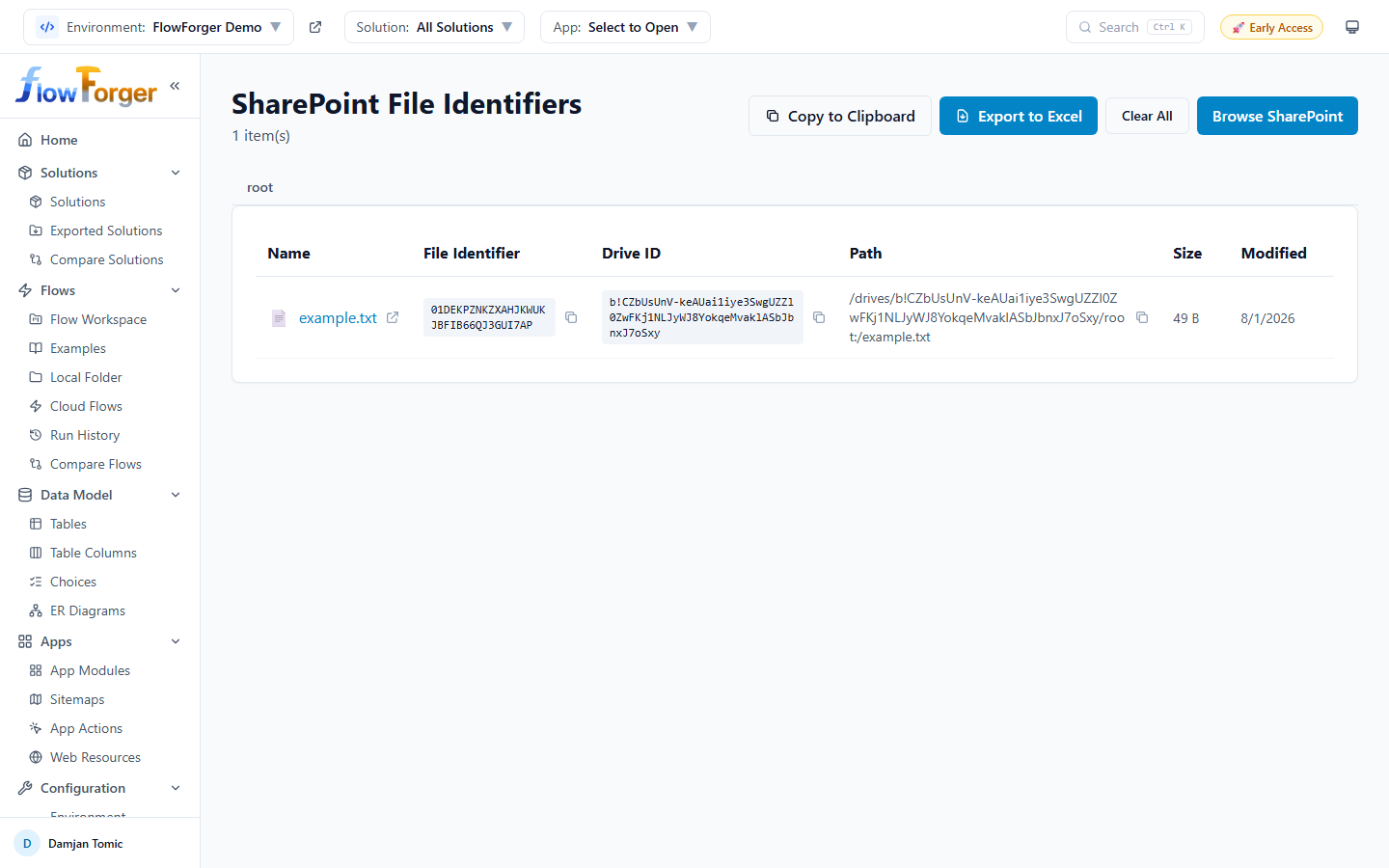 A resolved library folder with the identifiers of each file
Table Columns
- Name -- File or folder name with a type icon. Folder names are clickable to browse into them; file names link out to the item in SharePoint, and an external-link icon on every row opens the item in SharePoint directly.
- File Identifier -- The Graph drive item ID, with a copy button
- Drive ID -- The ID of the document library (drive) containing the item, with a copy button
- Path -- The item's path relative to the drive root, with a copy button
- Size -- Human-readable file size (folders show "-")
- Modified -- Last modified date
Folder Navigation
Clicking a folder name loads its contents and adds it to a breadcrumb trail above the table, so you can jump back to any ancestor folder without re-pasting a URL.
Clearing Results
Clear All resets the table and breadcrumb trail so you can resolve a different URL from scratch.
Export
Results can be exported to clipboard or Excel, with columns: Name, Type, File Identifier, Drive ID, Path, Size, Modified, Web URL.
Tips and Best Practices
Tip: Use the Lists Browser's Copy PA Reference action to quickly get the exact site URL and list GUID a FlowForger SharePoint connector action expects -- no need to hunt for the list GUID manually.
Tip: When exporting a schema for migration, only enable "Include list item data" if you actually need to carry over content -- it is slower, and Lookup/Person values require the target site to already have matching lookup targets and users to resolve correctly.
Tip: Run Compare Sites before an import to spot which lists already exist on the target site and avoid creating duplicates.
Tip: On the File Identifiers page, resolving a folder URL lets you keep browsing into subfolders without leaving the page -- only the first URL needs to be pasted in.
Tip: Both pages talk directly to SharePoint and Microsoft Graph rather than Dataverse, so they work independently of the environment and solution selected in the top header -- point them at any SharePoint site you have access to.