Compare Tools
FlowForger Portal includes three dedicated comparison tools: Compare Flows for diffing two flow definitions, Compare Roles for diffing security role privileges, and Compare Solutions for a full, multi-component diff between two solutions (which can live in different environments or even different tenants). This guide covers all three.
Compare Flows
Navigate to Flows → Compare Flows (/compare) to diff two flows side by side. Compare Flows has no plan limits.
Pinning Flows for Comparison
Compare Flows works together with a Comparison Tray that lives at the bottom of the screen. You "pin" flows from wherever you find them, and the tray tracks up to two pinned flows at a time.
- Pinning a flow from Cloud Flows -- On the Cloud Flows page, each row's ⋯ menu has Add to Compare. It is only offered in the Current Environment search scope. Cloud-only flows (flows that are not stored in Dataverse) can be pinned too; they show a Cloud badge.
- Pinning a flow from the Flow Editor -- In the Flow Editor, open More and choose Compare with... to pin the flow you are editing. This works for Dataverse, cloud-only, workspace, and local folder flows, but not for a new flow that has not been saved yet.
- The tray -- Once at least one flow is pinned, a collapsible tray appears fixed to the bottom of the window, labeled Compare (n/2). Click the label to expand or collapse it.
- Tray contents -- When expanded, the tray shows two slots (one per side). An empty slot reads "Pin a flow to compare." Each filled slot shows a source badge (Dataverse, Cloud, Workspace, or Local) and the flow name, with a button to remove it.
- Pinning a second flow -- Pinning a third flow while two are already pinned replaces the oldest pin, keeping the tray at a maximum of two.
- Launching the comparison -- The tray's Compare button is enabled once two flows are pinned and navigates to
/compare. You can also click Clear in the tray to unpin both flows at once. - Persistence -- Pinned flows are remembered in your browser, so the tray survives page navigation and browser refreshes.
The Compare Page
If no flows are pinned, the page shows a Pick a Flow button that opens the flow picker directly. If only one is pinned, a Pick Second Flow button opens the picker for the other side.
Once two flows are pinned, the page shows:
- Header actions -- Replace Flow (reopens the picker to swap either side) and Clear (unpins both flows).
- Flow slots -- A "Left" and "Right" card, each showing the source badge and flow name, with a remove button.
- Flow Picker dialog -- Opened via "Pick a Flow" or "Replace Flow." It has three tabs:
- Dataverse -- Lists flows from the currently selected environment, searchable by name, showing last-modified date.
- Workspace -- Lists locally saved workspace flows, searchable by name.
- Local File -- Lets you browse for a
.ff.tsor.jsonfile from your filesystem.
Note: Local file flows are pinned by filename only. If you re-open the Compare page later, local flows can't be reloaded automatically — you'll see a warning and need to re-pick the file or replace it with a Dataverse or Workspace flow.
Diff Views
Once both sides' flow IR is loaded, the page computes a diff (using parity-normalized comparison that ignores metadata noise, empty runAfter, casing, number formatting, and whitespace differences) and shows it in three tabs:
- Summary -- Status chips for Added, Removed, Changed, and Moved nodes, plus the total node count. Filter toggles let you show/hide each status category (Added, Removed, Changed, Moved, Unchanged independently). Below that, any flow-level field changes (like a renamed flow) are listed, followed by an expandable tree of node-level diffs. Expanding a node shows its individual property changes (old value struck through, new value shown).
Tip: For a control node (scope, if, foreach), the tree only auto-expands when the node itself or a descendant changed, so you can scan a large flow's diff quickly.
- DSL Code -- A side-by-side Monaco diff editor showing the generated TypeScript DSL for both flows, with colored line highlights (green/red/amber for added/removed/changed) matching the node diff status. Hovering a highlighted line shows a tooltip listing the specific property changes for that node.
- Graph -- Side-by-side flow graphs (the same visual flow graph used elsewhere in the app) for both flows, with nodes colored to reflect their diff status. Clicking a node on one side highlights the matching node (by name) on the other side, making it easy to visually cross-reference the two flows.
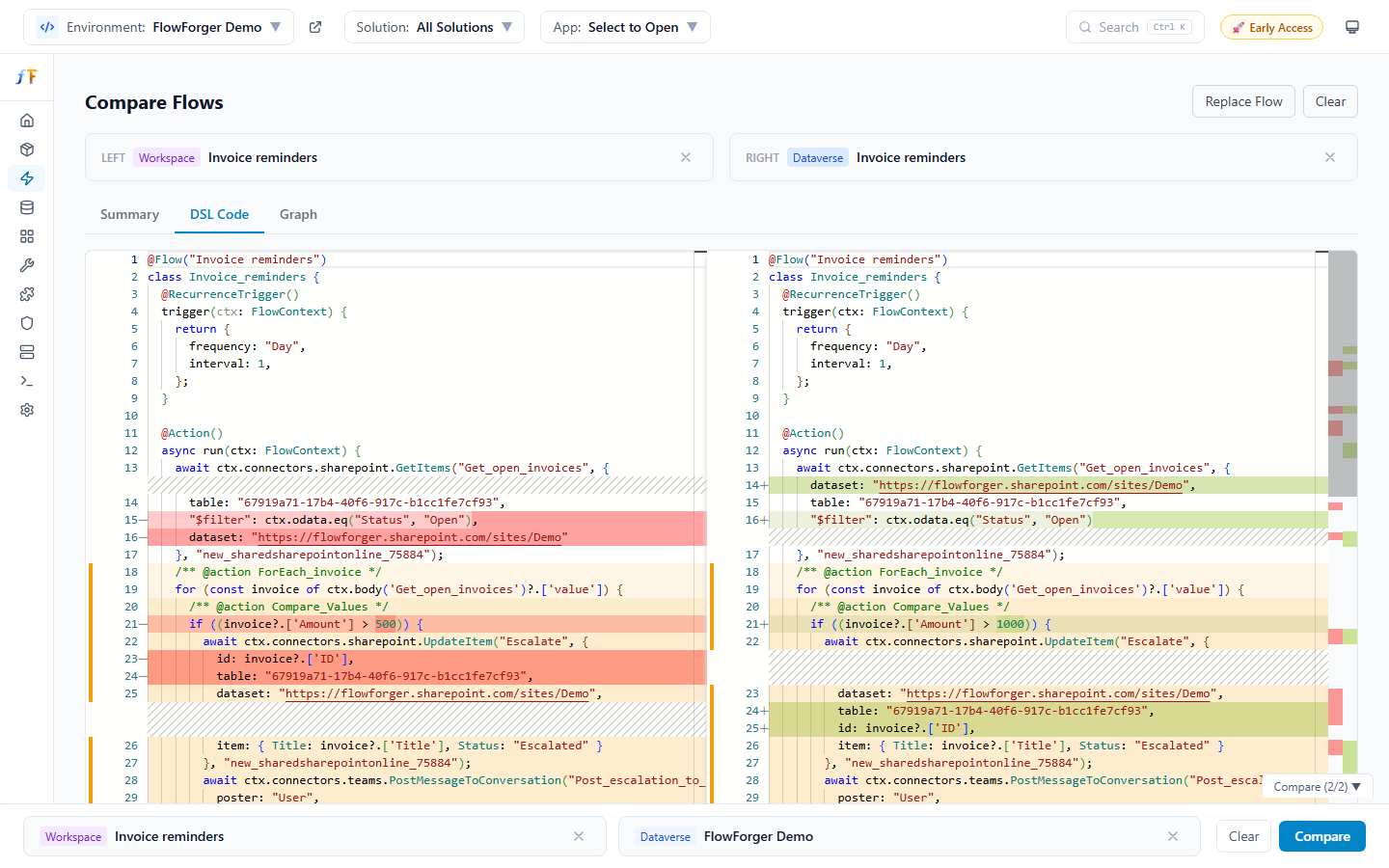 Two versions of a flow in the DSL Code view, with changed actions highlighted
Compare Roles
Navigate to Users & Security → Compare Roles (/compare-roles) to compare the privileges of two security roles. Compare Roles has no plan limits.
Selecting Roles
Each side (A and B) can be sourced independently:
- Live role -- Pick a security role from the current environment via a dropdown. If a solution is selected in the top header, the role list is scoped to that solution.
- Imported file -- Load a role's privileges from a JSON file exported with Export JSON on a role's Privileges tab (for comparing against a role from another environment or tenant that you don't have direct access to). Loading a file shows the role name and privilege count once parsed.
A Filter live roles text box narrows both dropdowns at once, and a ⇄ Swap button swaps sides A and B (including their mode and any imported file).
The legend explains the color coding used in the comparison: red for "only in A" (or a higher depth in A), green for "only in B," and amber for "depth differs." Depths are abbreviated as U (User), BU (Business Unit), P:C (Parent:Child), Org (Organization), and — (None).
Privilege Matrix
Once both sides are selected, a privilege matrix is shown:
- Standard privileges grid -- A table with one row per entity and one column per standard action (Create, Read, Write, Delete, etc.), where each cell shows the access depth for that entity/action on each side. Identical cells show the depth once; differing cells show A's depth struck through, an arrow, and B's depth.
- Other privileges -- A second table lists custom/non-standard privileges the same way.
- Show modified only -- A checkbox to hide identical rows and focus on differences (checked by default when differences exist).
- Unresolved privileges banner -- If some privileges couldn't be matched by name (a Dataverse fallback path), an info banner explains that those are excluded from the diff and the affected role is conservatively marked Modified.
Applying Changes (A → B)
When side B is a live role (not an imported file), a merge panel lets you push A's privileges onto B:
- Toggles -- Add missing privileges, Update changed depths, and Remove extras (only in B) — choose which categories of change to apply.
- Preview -- The panel shows a live count of how many privileges will be added/updated/removed based on the selected toggles.
- Guardrails -- The Apply button is disabled if: the target role is managed, no toggle is selected, some of A's privileges don't exist in the target environment (unresolved), some of B's existing privileges couldn't be resolved by name, or the target role has no existing privileges to infer its business unit from (needed to add new ones).
- Confirmation -- Clicking Apply opens a confirmation modal summarizing the add/update/remove counts and warning that this replaces the target role's full privilege set.
If side B is an imported file instead of a live role, the merge panel prompts you to use ⇄ Swap so the live role ends up on side B before applying.
Compare Solutions
Navigate to Solutions → Compare Solutions (/compare-solutions) to run a deep, multi-component diff between two solutions — potentially in different environments or tenants.
Note: During early access, Compare Solutions is unlimited. Once paid plans launch, the free plan includes a small number of comparisons and paid plans are unlimited; see Pricing. Each comparison you open (a pair of solutions on the two sides) counts as one use.
Selecting Sides
Each side has its own Environment and Solution dropdown. Choosing an environment loads its solutions; choosing a solution locks it in for that side. A ⇄ button swaps the two sides. If both environment and solution are already selected in the top header, side A pre-fills automatically.
Your selection is remembered in your browser, so returning to the page restores your last comparison. If both sides end up pointing at the exact same solution, a warning banner notes the diff will be empty.
Component Tabs
Once both sides are selected, the comparison renders as a tab strip:
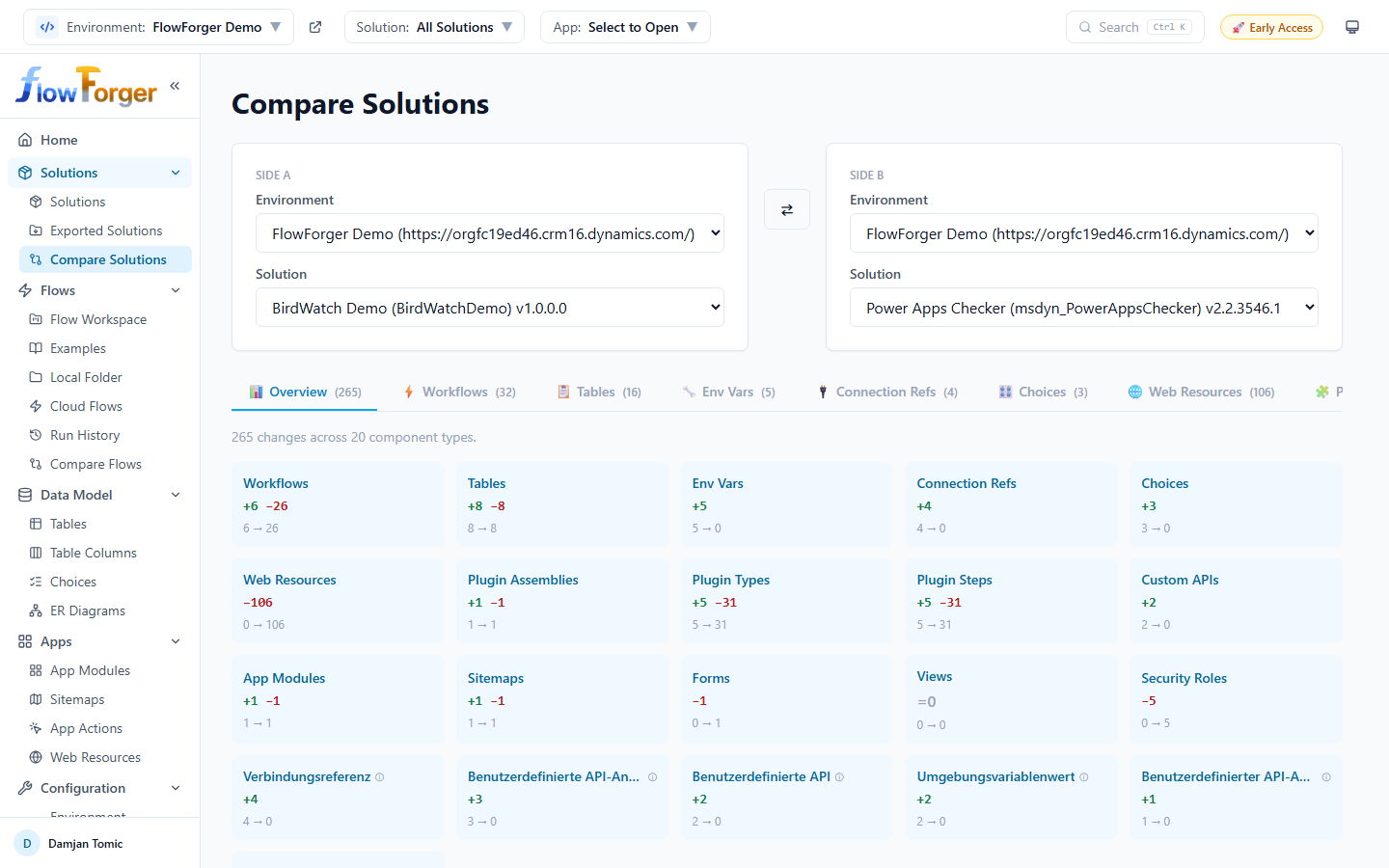 The Overview tab with one card per component type
- Overview -- A grid of cards, one per component type, each showing counts of items only in A, only in B, modified, and pending, plus the total item count on each side (e.g., "12 → 14"). Clicking a card jumps to that component's tab.
- Per-component tabs -- One tab per supported component type, each with a badge showing its total change count:
- Workflows, Tables, Env Vars, Connection Refs, Choices, Web Resources, Plugin Assemblies, Plugin Types, Plugin Steps, Custom APIs, App Modules, Sitemaps, Forms, Views, and Security Roles.
Each component tab shows a filterable, sortable, paginated table of items with columns for Status, Name, Side A, and Side B:
- Status filter chips -- All, Only A, Only B, Modified, Identical (each showing its count) let you narrow the table.
- Status values -- Only A (in the first solution but not the second), Only B (vice versa), Modified (present on both sides but different), Identical (present and equal), Pending (still fetching detail), or Error (detail fetch failed).
Drilling Into a Difference
How you inspect a "Modified" row depends on the component type:
- Inline detail -- For most components (Env Vars, Connection Refs, Custom APIs, App Modules, Plugin Assemblies, Plugin Types, Plugin Steps), clicking a Modified row expands a field-by-field comparison in a modal, showing each changed property's value on both sides.
- Content diff view -- For components with structured content (e.g., Custom API definitions), an Open diff → link navigates to
/compare-solutions/diff/:differId/:matchKey, which renders one or more side-by-side Monaco diff editors comparing the raw content of each panel. Sitemap diffs show an additional banner warning that GUID references inside the XML (likeAppModuleId,EntityId) are environment-specific, so lines differing only in GUIDs may not represent a real change. - Web resource diff -- Web Resources use their own route,
/compare-solutions/web-resource/:logicalName, which decodes and shows the two versions' content in a Monaco diff editor, auto-detecting the language (JS, TS, JSON, HTML, CSS, XML) from the file extension. - Security role diff -- Security Roles use
/compare-solutions/role/:matchKey, which reuses the same privilege matrix component as the standalone Compare Roles page to show a full depth-by-depth privilege comparison for that role across the two solutions.
All of the drill-in routes read the sides' environment/solution selection from the same saved comparison state, so they only work after you've picked both sides on the main Compare Solutions page.
Tips and Best Practices
Tip: You don't have to open the Compare page to start pinning flows — pin one from the Cloud Flows list or the Flow Editor, keep browsing, and pin a second later. The tray keeps both selections until you compare or clear them.
Tip: Use the DSL Code view in Compare Flows when you want to review a change like a code review (line-by-line), and the Graph view when you want to see how the change affects the overall shape of the flow.
Tip: When comparing roles, export a role to JSON first if you need to compare against an environment you don't currently have access to — you only need read access to export, and the imported file can be compared against any live role later.
Tip: On the Compare Solutions Overview tab, cards with zero changes are easy to skip — sort your attention to the cards showing non-zero counts first, since those are the component types worth reviewing.
Tip: Once paid plans launch, each comparison you open counts against the free plan's Compare Solutions allowance. Switching between component tabs within one comparison does not count again, so review everything you need while it is open.