Query Consoles
The Consoles section of the sidebar groups four developer-facing tools for querying and calling Dataverse and SharePoint directly: the FetchXML Query editor, the SQL Query editor, the SharePoint REST Console, and the SP SQL Query console. All four run entirely from your browser using your signed-in credentials — no data passes through FlowForger's own servers.
FetchXML Query
Navigate to Consoles → FetchXML Query (/fetchxml) to write and run raw FetchXML against your selected environment.
Editor
-
A Monaco XML editor pre-filled with a starter query:
<fetch top="50">
  <entity name="account">
    <attribute name="name" />
    <attribute name="accountid" />
    <attribute name="createdon" />
    <order attribute="createdon" descending="true" />
  </entity>
</fetch> -
Format button (or Shift+Alt+F) reformats the XML. Invalid XML is left unchanged.
-
Pasted FetchXML is reformatted automatically.
Running Queries
- ▶ Run executes the query. While running, a progress row shows rows fetched and the current page, with a Cancel button to abort mid-flight.
- Paging dropdown controls whether the query fetches a Single page or Fetch all pages (follows paging cookies automatically until exhausted).
- Cancelling a query still shows whatever rows were fetched before cancellation.
Load from a Saved View
Enter a table's logical name (e.g. account) next to Load views and click it to pull that table's saved (system) views from Dataverse into a dropdown. Selecting one replaces the editor contents with that view's FetchXML — the default view is marked "(default)".
History
The last 15 successfully executed queries are kept in a History dropdown, remembered in your browser. Selecting an entry loads it back into the editor.
Results
Results render via the shared results panel (also used by SQL Query):
- Grid view — sortable columns, pagination (25/50/100/200 rows), and export to Excel or clipboard. Rendering is capped at 5,000 rows for responsiveness; export always includes the full result set.
- Raw JSON view — the full Dataverse response, read-only in Monaco (skipped automatically above 2,000 rows to avoid freezing the editor; use Download JSON instead).
- Download JSON saves the complete raw response to a file.
- In Single page mode, if more rows exist beyond the page, a banner prompts you to switch to Fetch all pages.
SQL Query
Navigate to Consoles → SQL Query (/sql) to query Dataverse using a T-SQL-like syntax that is translated in your browser into FetchXML (for reads) or into Dataverse Web API batch requests (for writes). Nothing is sent to FlowForger's servers for parsing.
Editor
-
A Monaco SQL editor, starting with:
SELECT name, accountid FROM account ORDER BY createdon DESC -
Ctrl+Enter (Cmd+Enter on macOS) or Run runs the query. If you have selected text, only the selection runs. The editor can hold several statements separated by
;— with no selection, Run executes the statement under the cursor. -
Paging dropdown — Single page or Fetch all pages, as in FetchXML Query.
-
Format (Shift+Alt+F) reformats the SQL.
-
As-you-type validation underlines syntax errors and unsupported features directly in the editor; with several statements, only the broken ones are marked.
-
Schema-aware autocomplete for table names and columns, loaded on demand as you type.
-
Drag the handle below the editor to resize it.
-
An Examples dropdown loads curated sample queries covering filters,
IN/BETWEEN, joins,GROUP BY, date grouping, relative dates,DISTINCT, subqueries,HAVING, and DML. -
View FetchXML opens a slide-over panel showing the translated FetchXML for the current query (live-translated as you type); Open in FetchXML editor sends it to the FetchXML Query page.
Supported SQL — SELECT (read-only, translated to FetchXML)
- Columns: explicit column lists with optional
ASaliases, orSELECT *(not mixed with explicit columns). - WHERE:
=,<>/!=,>,>=,<,<=,IN/NOT IN,LIKE/NOT LIKE,BETWEEN/NOT BETWEEN,IS [NOT] NULL, andAND/ORgrouping. - Dataverse-specific helpers usable in WHERE comparisons:
CURRENT_USER()(maps toeq-userid/ne-userid), relative-date functions (TODAY(),YESTERDAY(),TOMORROW(),THIS_WEEK(),THIS_MONTH(),THIS_YEAR(),LAST_WEEK(),LAST_MONTH(),LAST_YEAR(),NEXT_WEEK(),NEXT_MONTH(),NEXT_YEAR()), and rolling-window functions (LAST_X_DAYS(n),NEXT_X_DAYS(n),LAST_X_MONTHS(n),OLDER_THAN_X_MONTHS(n)). - Subqueries in WHERE:
IN (SELECT col FROM table WHERE ...),NOT IN (...),EXISTS (SELECT ... WHERE sub.fk = outer.pk), andNOT EXISTS (...). These compile to FetchXML<link-entity>semi-joins.IN/NOT INsubqueries must select exactly one column;EXISTS/NOT EXISTSsubqueries must be correlated to the outer query's root table. Aggregate subqueries and nestedUNIONs are rejected. - Joins:
INNER JOINandLEFT JOINwith a simpleON a.col = b.colequality, plus classic comma joins (FROM a, b WHERE b.fk = a.pk).RIGHT/FULL/CROSSjoins are rejected. - Aggregation:
COUNT(*),COUNT(col),COUNT(DISTINCT col),SUM,AVG,MIN,MAX, withGROUP BY(includingYEAR()/MONTH()/DAY()date grouping) andORDER BYover selected/aggregate columns. Every non-aggregated selected column must appear inGROUP BYand vice versa. - HAVING: supported on aggregate queries, but since FetchXML has no aggregate-filter concept, the predicate is applied in your browser after the FetchXML aggregate query returns — a warning banner explains this whenever a query has a HAVING clause.
- DISTINCT, TOP n (maps to FetchXML
top), and ORDER BY are supported on non-aggregate queries;DISTINCTcannot be combined withGROUP BY/aggregates. - Not supported:
UNION/set operations, running several statements at once (one statement runs per Run), functions/expressions in the SELECT list (besides the date-grouping functions above), and cross-entityORconditions spanning two different tables (FetchXML filters are per-entity — useANDinstead).
Supported SQL — DML (INSERT / UPDATE / DELETE)
FetchXML is read-only, so writes execute as Dataverse Web API batch requests instead:
INSERT INTO table (col, ...) VALUES (...), (...)— one or more literal rows (strings, numbers, booleans,NULL).INSERT INTO table (col, ...) SELECT col, ... FROM source WHERE ...— copies rows from a query into the target table, mapping columns positionally (sourceColumns[i]→columns[i]). The SELECT half reuses the full single-table SELECT translator, so it supports the same WHERE surface (including subqueries),ORDER BY,TOP, andDISTINCT. Restrictions: exactly one source table (no joins), noSELECT *(columns must be listed explicitly), no aliases, and aWHEREclause is mandatory — an unconditionalINSERT ... SELECTis rejected (useWHERE <primary-key> IS NOT NULLto intentionally copy every row).UPDATE table SET col = expr, ... WHERE ...—SETvalues can be a literal, a reference to another column on the same row (evaluated against the row's own data resolved at preview time), or a+/-/*//expression combining them, e.g.SET description = 'Reviewed: ' + name.DELETE FROM table WHERE ....UPDATE/DELETEreuse the SELECT translator's WHERE builder verbatim, so every WHERE feature described above (operators, date helpers,CURRENT_USER(), andIN/NOT IN/EXISTS/NOT EXISTSsubqueries) also works in DML.- A
WHEREclause is required onUPDATEandDELETE— an unconditional statement is rejected outright, to prevent accidentally touching every row in a table. - A hard safety limit of 10,000 rows applies per statement (
UPDATE,DELETE, andINSERT ... SELECT); a statement that would exceed it fails before anything is written, prompting you to narrow theWHEREclause.
DML Execution Flow: Preview, Then Confirm
Running a DML statement never writes immediately. It goes through a mandatory two-phase flow shown in a dedicated panel below the editor:
- Preparing — the app loads write metadata for the target table and (for
UPDATE/DELETE/INSERT ... SELECT) resolves the affected records by running theWHEREclause as a FetchXML query, showing a live count as rows are found. - Preview — a summary of what will happen: the verb and row count, a sample of up to 10 affected records (id and primary name, plus computed changes for
UPDATE), and the full value payload forINSERT. Lookup columns that would be cleared are called out separately. You must click Confirm to proceed, or Cancel to abort — nothing has been written yet at this point. - Executing — writes are sent as Dataverse
$batchchangesets of 100 requests each. Each changeset is atomic (a failure rolls back that whole chunk), but there is no atomicity across chunks, so a large statement can partially succeed. A progress indicator and Cancel button are shown. - Done — a summary of succeeded/failed operation counts, any created record ids, and error messages for failures.
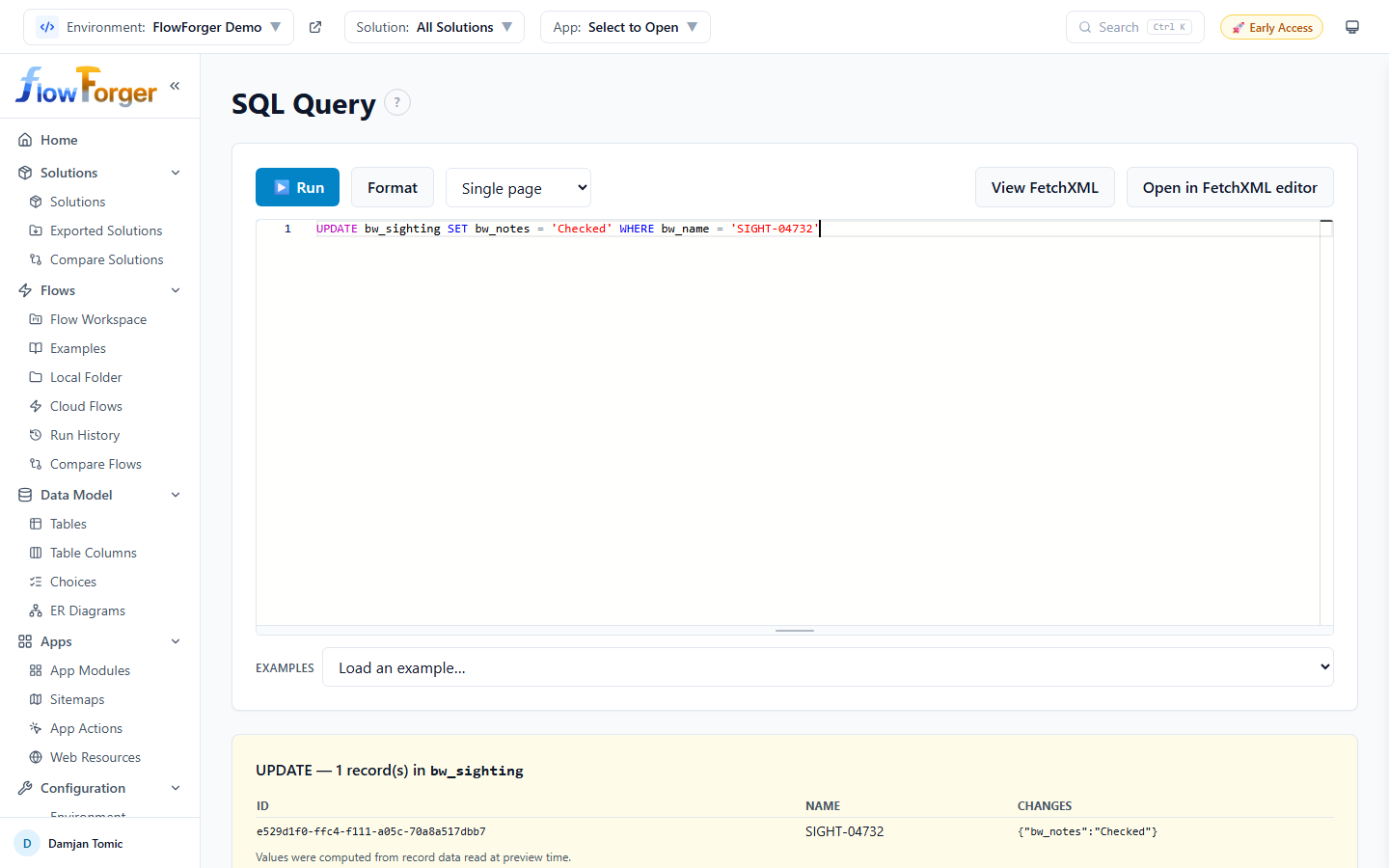 The preview of an UPDATE statement, waiting for Confirm
Plan Limits
FetchXML and SQL SELECT queries have no limits. During early access, SQL INSERT/UPDATE/DELETE is unlimited too. Once paid plans launch, the free plan includes a small number of DML runs (shared with SP SQL Query; each successful run counts as one) and paid plans are unlimited. The Run button then shows how many free runs are left. See Pricing.
History
Like FetchXML Query, the last 15 successfully run statements (including successful DML runs) are kept in a History dropdown, remembered in your browser.
SP REST Console
Navigate to Consoles → SP REST Console (/sp-rest) to send arbitrary requests to the SharePoint REST API (_api/...) against any site, similar to Postman but scoped to SharePoint.
Request Builder
- Site URL — the target SharePoint site (e.g.
https://contoso.sharepoint.com/sites/mysite). On first load, the page tries to detect a default: first your tenant's root site, then a URL derived from your sign-in name. The value is remembered in your browser and shared with the SharePoint Lists Browser page. - Method —
GET,POST,PATCH,PUT, orDELETE. - API path — relative to the site, e.g.
_api/web/lists?$select=Id,Title. Press Enter in the field or click ▶ Send to execute. - OData metadata —
nometadata(lean),minimalmetadata, orverbose(d-wrapped response), controlling theAccept/Content-Typeheaders and response shape. - Additional headers — add arbitrary custom request headers; user-supplied headers override the defaults (useful for a specific
IF-MATCHetag). - Request body (JSON) — a Monaco JSON editor shown for verbs that can carry a body (
POST,PATCH,PUT, orDELETEwith a non-empty body).
Verb Translation
SharePoint REST rejects real PATCH/DELETE on some endpoints, so mutating verbs are sent as documented by SharePoint's REST conventions:
| UI verb | Sent as | Extra headers |
|---|---|---|
GET | GET | — |
POST | POST | Request digest (X-RequestDigest) fetched and attached automatically |
PATCH | POST | X-HTTP-Method: MERGE, IF-MATCH: *, digest |
PUT | POST | X-HTTP-Method: PUT, IF-MATCH: *, digest |
DELETE | POST | X-HTTP-Method: DELETE, IF-MATCH: *, digest |
A note under the toolbar explains exactly what will be sent on the wire for the current verb. DELETE also prompts a browser confirmation dialog before sending, since it cannot be undone.
Snippets
A Snippets dropdown inserts common ready-made requests, including: Web info, Current user, All lists, List items, List fields, List views, Site users, Subwebs, Folder contents, Search, Create/Update/Delete list item, and Ensure user.
History
The last 20 requests (verb, path, body, metadata level, and headers) are kept in a History dropdown, deduplicated by verb+path+body and remembered in your browser.
Response
- Status line shows HTTP status, duration in milliseconds, the effective method and URL sent, and row count if the response is tabular.
- If the parsed JSON response contains a collection (
value,d.results, or a raw array of objects), a Table view is shown alongside a JSON view toggle.__metadata/odata.*/@odata.*noise keys are hidden as columns automatically. - Next page → follows the OData
nextLink(odata.nextLink,@odata.nextLink, ord.__next) without re-recording history. - Headers toggles a display of all response headers.
- Copy body copies the raw response body to the clipboard.
- SharePoint error responses (
odata.error/error.message) are surfaced as a friendly one-line message alongside the raw body.
Export as Flow Action
The Export as flow action button opens a modal showing the equivalent "Send an HTTP request to SharePoint" action for the current request, in two formats you can copy:
- FlowForger DSL — a
ctx.connectors.sharepoint.HttpRequest(...)call snippet. - Logic Apps JSON — the raw
OpenApiConnectionaction definition, ready to paste into a flow'sclientdata.json.
The verb is passed through as-is in the exported action; the SharePoint connector itself handles the digest/method-override conventions at flow-runtime.
SP SQL Query
Navigate to Consoles → SP SQL Query (/sp-sql) to query a single SharePoint list using a T-SQL-like SELECT syntax, translated in your browser into a SharePoint REST request (_api/web/lists.../items?$select=...&$filter=...) or a CAML query, or to write to it with INSERT/UPDATE/DELETE behind the same mandatory preview-then-confirm flow as the Dataverse SQL console (see below). Like SQL Query, nothing is sent to FlowForger's servers — the translation and the requests all run in your browser, with your own SharePoint sign-in.
Editor and Site Selector
- Site URL — the same field and detection behavior as the SP REST Console. The value is shared between the two pages, so picking a site on one carries over to the other.
- A Monaco SQL editor, starting with
SELECT * FROM [Your List]— replace[Your List]with a list title or GUID. - Ctrl+Enter (Cmd+Enter on macOS) or Run runs the query. If you have selected text, only the selection runs; with several statements separated by
;and no selection, Run executes the statement under the cursor. - Paging dropdown — Single page or Fetch all pages (see Client-Side Ops and the 10,000-Row Cap).
- Format (Shift+Alt+F) reformats the SQL.
- As-you-type validation underlines syntax errors and unsupported features directly in the editor; with several statements, only the broken ones are marked.
- Schema-aware autocomplete for the list name and its columns.
- Drag the handle below the editor to resize it.
- An Examples dropdown loads starter queries covering a plain scan, filter + sort, a date range,
LIKEtext search, files in one library folder, client-sideCOUNT/GROUP BYandDISTINCT, and the three DML statements. - View Request opens a slide-over panel showing the SharePoint REST URL that will be (or was) sent, plus a "Notes & client-side steps" list whenever any part of the query can't be pushed to SharePoint, or a selected lookup/person column needs the raw-Id note described below.
Supported SQL
- FROM: exactly one list, by title (
FROM [My List]) or GUID. JOINs, comma-joins, and subqueries are all rejected — SP SQL Query only ever touches one list. - Columns: explicit column lists with optional
ASaliases (aliases only apply to aggregate queries), orSELECT *. - WHERE:
=,<>/!=,>,>=,<,<=,IN/NOT IN(up to 20 values),BETWEEN/NOT BETWEEN,IS [NOT] NULL,LIKE/NOT LIKE, andAND/ORgrouping.NOT (...)is rejected — use the negated operator form instead (NOT IN,NOT LIKE,IS NOT NULL,<>). - Aggregation:
COUNT(*),COUNT(col),COUNT(DISTINCT col),SUM,AVG,MIN,MAX, withGROUP BYandORDER BYover selected/aggregate columns. Every non-aggregated selected column must appear inGROUP BYand vice versa. Date-grouping functions (YEAR()/MONTH()/DAY()) are not supported here (unlike the Dataverse SQL Query console). - HAVING: supported on aggregate queries, applied client-side after the aggregated rows are computed.
- DISTINCT and TOP n are supported on non-aggregate queries;
SELECT DISTINCT *is rejected — list the columns explicitly.DISTINCTcombined withGROUP BY/aggregates is rejected. - Not supported:
UNION/set operations, running several statements at once (one statement runs per Run), column-to-column comparisons, and any SELECT-list expression other than a plain column or an aggregate function. - Lookup and person columns (including
Author/Editor) can be selected, filtered, and sorted directly by display value —WHERE Owner = 'Dana Smith',WHERE Category = 'Hardware', andORDER BY Ownerall run, via the CAML backend described below. Matching and sorting go by display value, but the result rows always carry the column's raw<Field>Id— filtering or sorting on the column changes how the query matches, not what value comes back. A warning explains this whenever a lookup/person column is named explicitly in the SELECT list;SELECT *returns the same Id-shaped values for those columns without the warning. While the list's column information has not loaded yet, a lookup/person column is not recognized as one and is treated like any other column. - Library folders: on a document library,
WHERE FileDirRef = '<folder path>'lists one folder's direct children (files and subfolders), andWHERE FileRef LIKE '<folder path>/%'everything below it. See Folder-Scoped Queries.
Supported SQL — DML (INSERT / UPDATE / DELETE)
Writes execute as SharePoint REST item requests (POST .../items, MERGE, DELETE — the same conventions as the SP REST Console's verb mapping below), one item per request:
INSERT INTO list (col, ...) VALUES (...), (...)— one or more literal rows (strings, numbers, booleans,NULL).INSERT INTO list (col, ...) SELECT col, ... FROM otherList WHERE ...— copies rows between lists (or within one), mapped positionally onto the target columns. The source SELECT must be an explicit single-list column list (noSELECT *, aliases, aggregates, orGROUP BY/HAVING); its full WHERE surface,ORDER BY,TOP, andDISTINCTall work, and aWHEREis mandatory (useWHERE ID IS NOT NULLto intentionally copy everything). A source lookup/person column reads its raw<Field>Idand can feed a target lookup/person column directly.UPDATE list SET col = expr, ... WHERE ...—SETvalues can be a literal, a reference to another column of the same item, or a+/-/*//expression combining them (e.g.SET Title = '[archived] ' + Title), evaluated per item at preview time against the item's own resolved data. Referenced columns must be text, number, or single-value lookup/person columns (read as their numeric<Field>Id);NULLoperands propagate T-SQL-style.DELETE FROM list WHERE ....UPDATE/DELETEcompile theirWHEREthrough the same engine aSELECTuses, so the full WHERE surface described above works in DML too — including lookup/person matching by display value andCURRENT_USER()(both via CAML) and residualLIKEpatterns (applied client-side to the resolved target set).- A
WHEREclause is required onUPDATEandDELETE— an unconditional statement is rejected outright (to intentionally target all items, useWHERE ID IS NOT NULL). - A hard safety limit of 10,000 items applies per statement. Additionally, a
WHERE(orINSERT … SELECTsource) that routes to CAML and matches the 5,000-row CAMLRowLimitis refused outright —GetItemshas no paging cursor, so a full page is indistinguishable from a truncated one, and writing against a possibly-incomplete target set would silently miss rows (the SELECT path merely warns in this situation; DML must not). - Column typing comes from the list's column information (the same that feeds autocomplete, which lists writable columns only): values are validated per column type at preview time, and display names resolve to internal names. A written column that is not found is rejected as missing or read-only; if the column information has not loaded, names pass through as typed and SharePoint validates them on execute. Columns only read by a SET expression may be system columns such as
IDorCreated; a misspelled one still fails, because SharePoint rejects unknown fields. - Lookup columns are written by numeric item id —
SET Category = 12writesCategoryId: 12; person columns take an id or an email/login string (SET Assignee = 'dana@contoso.com'), resolved to a site user id via_api/web/ensureuserat preview time (cached per statement). Multi-value columns (LookupMulti/UserMulti/MultiChoice) take a single';'-separated string —'Red; Blue','3; 5','a@x.com; 12'— written as a JSON array. Hyperlink/picture columns take'url'or'url, description'.NULLclears any of these (an empty collection for multi-value columns).
Running a DML statement never writes immediately — the same two-phase flow as the Dataverse SQL console applies: Preparing (targets resolved by running the WHERE as a query, with a live row count), then Preview (verb, item count, up to 10 affected items with id/Title, and the exact payloads) requiring an explicit Confirm. Execution issues one REST request per item, sequentially, with live progress and cancellation; per-item failures are collected and reported without stopping the run. Unlike Dataverse $batch changesets there is no atomicity — items already written stay written if a later one fails. The FREE-tier metered DML trial is shared with the Dataverse SQL console (each successful run counts as one use).
When CAML Is Used
Most queries translate to a SharePoint REST OData request ($select/$filter/$orderby/$top, as described throughout this page). A query is instead routed to a second backend — CAML, executed as a single POST .../GetItems call with a <View> XML query — automatically and per-query, whenever it needs something OData cannot express:
- A lookup or person column (including
Author/Editor) appears in a comparison,IN,BETWEEN,IS [NOT] NULL,LIKE, orORDER BY. This is howWHERE Owner = 'Dana Smith',WHERE Category = 'Hardware', andORDER BY Ownerrun. CURRENT_USER()is used anywhere inWHERE— it has no OData form at all, so it always uses CAML, even before the list's column information has loaded.- The query is scoped to a library folder (see Folder-Scoped Queries).
- Once any part of the query needs CAML, the whole WHERE tree is sent as CAML — including a lookup/person predicate mixed into an
ORor a largerAND/ORtree. - Merely selecting a lookup/person column (
SELECT Owner, with no WHERE/ORDER BY reference to it) does not use CAML, since the returned values are the same either way. That case stays on OData with the column rewritten to<Field>Id(see above). - A column is only recognized as lookup/person once the list's column information has loaded. Until then the query stays on OData and the name is passed through as typed (a wrong name surfaces as a SharePoint error).
What CAML makes possible: filtering/sorting on a lookup or person column by display value, IN on lookup/person values (still at most 20), CURRENT_USER() comparisons (=/<> only), and threshold-safe folder queries. CAML does not change how multi-segment LIKE '%a%b%' and NOT LIKE are handled (CAML has no generic NOT, and Contains matches a single substring), nor aggregates/GROUP BY/HAVING/DISTINCT/JOINs/subqueries — these are computed in your browser or rejected, as described below.
Multi-value columns (LookupMulti/UserMulti) only support two operations, since CAML has no equality/ordering semantics for a multi-value field: LIKE '%text%' (membership/contains match) and = CURRENT_USER(). Every other operator — =, <>, IN, BETWEEN, relational comparisons, and exact-match or prefix ('x%') LIKE — is rejected at translate time with a message pointing at the paired <Field>Id column instead.
LIKE still requires a text-bearing column on both backends: Text/Note/Choice and lookup/person columns are fine, but a resolved Boolean/DateTime/Number/Integer/Counter/Currency column rejects LIKE outright ("use =, <>, or range operators instead") rather than silently building a malformed comparison.
The single-request 5,000-row CAML bound: unlike the OData path (which pages at 5,000 rows per request up to a 10,000-row client-side cap), a CAML query runs as one GetItems request with RowLimit set to TOP (if given) capped at 5,000, or 5,000 by default — GetItems returns no paging cursor, so there's no way to fetch a second page. If no TOP was given and exactly 5,000 rows come back, a warning appears ("SharePoint returned the CAML row limit (5,000) — results may be truncated. Narrow the WHERE clause or add TOP to bound the query explicitly.") since that count is indistinguishable from "there were exactly 5,000 matching rows." Setting an explicit TOP (even one above 5,000) suppresses the warning, since hitting the cap is then expected. Any client-side operations (aggregation, DISTINCT, etc.) present in the same query still run afterwards, over this single (up to 5,000-row) CAML fetch rather than the OData path's paged, 10,000-row fetch.
<> (not-equal) null semantics differ between backends. On the CAML path, <Neq> excludes rows where the column is empty — a row with no value for that column does not match <> 'value', which is closer to standard SQL three-valued-comparison semantics. On the OData path, ne matches rows where the column is null too (SharePoint's OData layer treats an empty field as not-equal to any given value). Since a plain <> predicate with no lookup/person column stays on OData, this difference is only visible when the query uses CAML — e.g. WHERE Owner <> 'Dana Smith'. NOT IN inherits the same divergence on CAML: since CAML has no NotIn, NOT IN (...) is sent as an AND of one <Neq> per value, so a row with no value for that column is excluded from every <Neq> and therefore never matches the NOT IN, the same empty-row-excluding behavior as a single <>.
In the UI: a CAML-backed query shows a "Runs via CAML (GetItems)" badge next to the warnings banner and in the View Request panel, which for a CAML plan shows the GetItems POST URL and the generated ViewXml (read-only Monaco XML editor) instead of an OData URL. Any run-time warning (currently just the truncation warning above) appears alongside the query's translate-time warnings, both above the results.
Folder-Scoped Queries
In a document library, FileRef is an item's full server-relative path, FileDirRef the path of its folder, and FileLeafRef its file name. Filtering on those columns normally scans the whole library, which fails on a library above SharePoint's 5,000-item list view threshold. SP SQL Query therefore recognizes two folder conditions and sends them as a folder scope on a CAML request instead, which SharePoint evaluates per folder:
WHERE FileDirRef = '/sites/mysite/Shared Documents/Invoices'— the folder's direct children, files and subfolders alikeWHERE FileRef LIKE '/sites/mysite/Shared Documents/Invoices/%'— everything below the folder (the pattern must end in/%)
SELECT ID, FileLeafRef, Modified, Editor
FROM [Documents]
WHERE FileDirRef = '/sites/mysite/Shared Documents/Invoices' AND FSObjType = 0
(FSObjType = 0 keeps files only.) The folder condition must be a top-level AND condition; inside an OR or NOT, or when the query has two folder conditions, it is treated as an ordinary filter. Folder-scoped queries use CAML, so the badge and the 5,000-row bound described above apply.
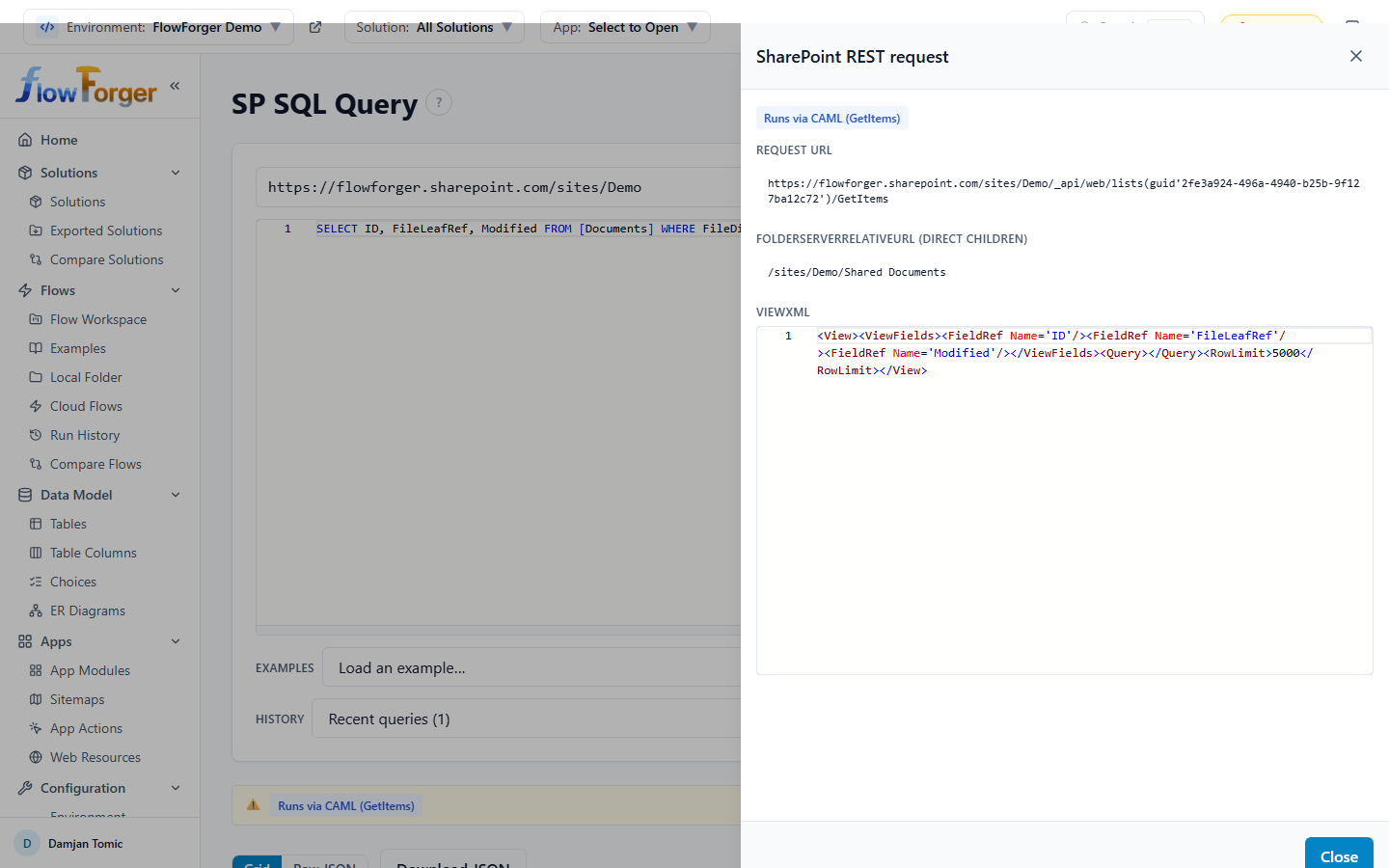 A folder-scoped query on a large library, with the View Request panel showing the CAML request
What Pushes to SharePoint vs. Runs Client-Side
Everything that maps cleanly to SharePoint REST's OData surface is pushed as $select/$filter/$orderby/$top on the request. Everything else — condensed from the push-down table above — is fetched first and then computed client-side, in the browser, over a result set capped at 10,000 rows:
| Feature | Where it runs |
|---|---|
Plain comparisons, IN/NOT IN, BETWEEN, IS [NOT] NULL, anchored LIKE (see below), AND/OR (top-level) | Pushed to $filter |
ORDER BY (non-aggregate query) | Pushed to $orderby |
TOP n (no other client op active) | Pushed to $top |
Non-anchored LIKE patterns, all NOT LIKE | Client-side |
COUNT/SUM/AVG/MIN/MAX, GROUP BY | Client-side |
HAVING | Client-side |
DISTINCT | Client-side |
ORDER BY on an aggregate query | Client-side |
TOP n (when any other client op is active) | Client-side, applied last — does not reduce what's fetched (see TOP Semantics below) |
Whenever any client-side operation is active, a warning banner (and the View Request panel's "Notes & client-side steps" list) explains which parts of the query were computed after fetching, so results aren't mistaken for something SharePoint itself filtered or aggregated.
LIKE Pattern Rules
LIKE patterns are pushed to SharePoint only when they're a simple anchored pattern with no other %/_ wildcards inside:
'%text%'→ pushed assubstringof(text, Column).'text%'→ pushed asstartswith(Column, text).- A pattern with no wildcards at all → pushed as a plain equality (
Column eq 'text'). - Any other pattern — a leading-only wildcard (
'%text'),_wildcards, or multiple%segments — is not pushable and is instead applied client-side as a case-insensitive regex match over the fetched rows. NOT LIKEis always computed client-side, regardless of the pattern's shape — SharePoint REST has no negatedsubstringof/startswith. ANULLcell is treated as not matching the positive pattern, so it satisfiesNOT LIKE(the row is kept) the same way SQL'sNOT LIKEwould exclude it from a positiveLIKEmatch.- A non-pushable
LIKE/NOT LIKEcan only appear as a top-levelANDcondition — if it's combined withOR, translation fails with an explicit error, since a client-side residual predicate can't be expressed inside a server-sideor.
Client-Side Ops and the 10,000-Row Cap
Whenever the query needs any client-side processing (a non-pushable LIKE, aggregation, HAVING, DISTINCT, or ORDER BY on an aggregate query) — or the paging dropdown is set to Fetch all pages — the runner pages through the list automatically (5,000 rows per SharePoint REST request) instead of returning a single page, so the client-side operation sees the complete matching set before computing its result. This has a hard safety cap: if more than 10,000 rows match before client-side processing, the query fails outright and asks you to narrow the WHERE clause or add TOP — note that adding TOP only helps when it's the only client-side-triggering clause in the query; combined with another client-side operation it doesn't reduce what's fetched (see TOP Semantics below), so narrowing WHERE is the reliable fix once aggregation/DISTINCT/a residual LIKE is already in play. Cancelling mid-run still shows whatever rows were fetched (and had client-side ops applied) before you cancelled.
TOP Semantics
- A plain
TOP nwith no other client-side operation is pushed straight to$top. In single-page mode SharePoint returns at mostnrows directly; in fetch-all mode,nalso bounds the fetch itself — it caps the per-request page size, stops paging oncenrows are in hand, and trims to exactlyn. - A
TOP nalongside any other client-side operation (aggregation/GROUP BY,HAVING,DISTINCT, or a non-pushableLIKE) can't be pushed to$topat all, since the row limit has to apply after that client-side step, not to the raw rows from SharePoint. In that caseTOPdoes not reduce what gets fetched — the runner still pages through the full matching result set (at the standard 5,000-row page size, up to the 10,000-row cap) before computing the client-side operation, and only then trims the final output tonrows. ATOP ncombined with an expensive aggregate/DISTINCT/LIKE over a large list is therefore just as costly as the same query withoutTOP— narrow theWHEREclause if it's slow, not theTOPvalue.
List View Threshold
SharePoint's list view threshold (5,000 items per list operation, the SharePoint REST equivalent of a large-list query limit) can reject a query outright with SPQueryThrottledException. When that happens, the console surfaces an explicit message: filter on an indexed column, add TOP, narrow the WHERE clause, or — in a document library — scope the query to one folder (see Folder-Scoped Queries). This is most likely to bite fetch-all runs (large aggregations, DISTINCT over a big list, or "Fetch all pages") against a list that isn't filtered down first.
History
Like the other consoles, the last 15 successfully run queries are kept in a History dropdown, remembered in your browser.
Tips and Best Practices
Tip: Use View FetchXML on the SQL Query page to understand exactly what FetchXML your SQL translates to — invaluable when a query behaves unexpectedly or when you want to hand off the FetchXML to another tool.
Tip: For SQL
UPDATE/DELETE, always read the preview step carefully — it shows the actual records and computed values before anything is written, and is your only chance to catch a WHERE clause that matches more rows than intended.
Tip: A HAVING clause in SQL Query is applied in your browser after the aggregate FetchXML query returns, not inside FetchXML itself — for very large aggregate result sets, prefer narrowing with WHERE where possible since HAVING doesn't reduce what Dataverse computes.
Tip: When exploring an unfamiliar SharePoint site's list schema, use the List fields snippet in the SP REST Console to see internal names, types, and required flags before writing create/update payloads.
Tip: On the SP SQL Query console, use View Request to see exactly what got pushed to
$filter/$orderby/$topversus what's being computed client-side — a query that looks slow is usually one where a non-pushableLIKE, an aggregate, orDISTINCTis forcing a full fetch-all pass capped at 10,000 rows.
Tip: All four consoles keep a local, per-browser history — they're a convenient scratchpad, but nothing is synced across devices, so copy anything you want to keep permanently (e.g. into the DSL editor or an example file).